Drone-Hacks mobile allows you to modify your drone from anywhere, even when you're away from your PC, certain functions are even supported when you're offline out in the field with no cell phone reception or are using a tablet with no cell service.
As a reminder, enabling FCC power levels may not be legal in your country or region and you, as the operator, remain responsible for safe and lawful use of your drone.
This page will detail the screens you will see in DH mobile and a brief overvew of how to use the app.
¶ Licensing
DH mobile is an additional item on-top of your Drone-Hacks license applied to your drone. Because of this, Drone-Hacks mobile is a subscription product. You can subscribe to the app without a DH license, or with one, below is a table explaining the different features you get in each licensing model.
| Features | DH Mobile Subscription Only | Licensed Drone Only | DH Mobile Subscription & Licensed Drone |
| Apply/Remove/Customise Hacks | ❌ | ✅ | ✅ |
| Parameter Editor | ✅ | ❌ | ✅ |
| Firmware Flashing | ✅ | ❌ | ✅ |
| Disable Forearm LED's | ✅ | ❌ | ✅ |
| One-Shot FCC | ✅ | ❌ | ✅ |
| Offline Useage | ✅ | ❌ | ✅ |
For the latest pricing for the app, please see the main website & remember, you get a discount for subscribing for 1 year vs a monthly subscription!
¶ Basic Connections
For DH mobile to communicate with your drone, it should be connected to the drone using a known good, high quality USB cable. Once connected, open the app and allow communication with the drone by pressing OK to this prompt
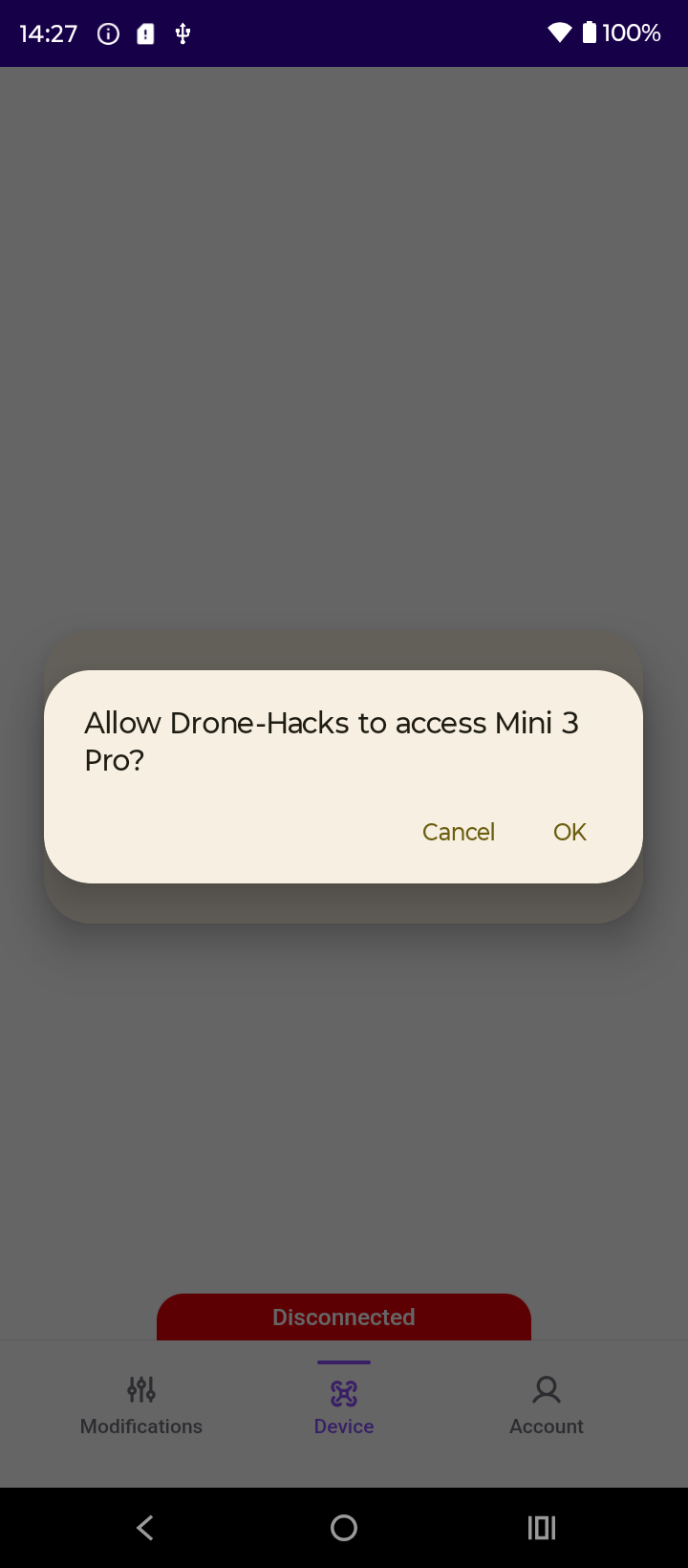
Once that is done, you can move onto the next section!
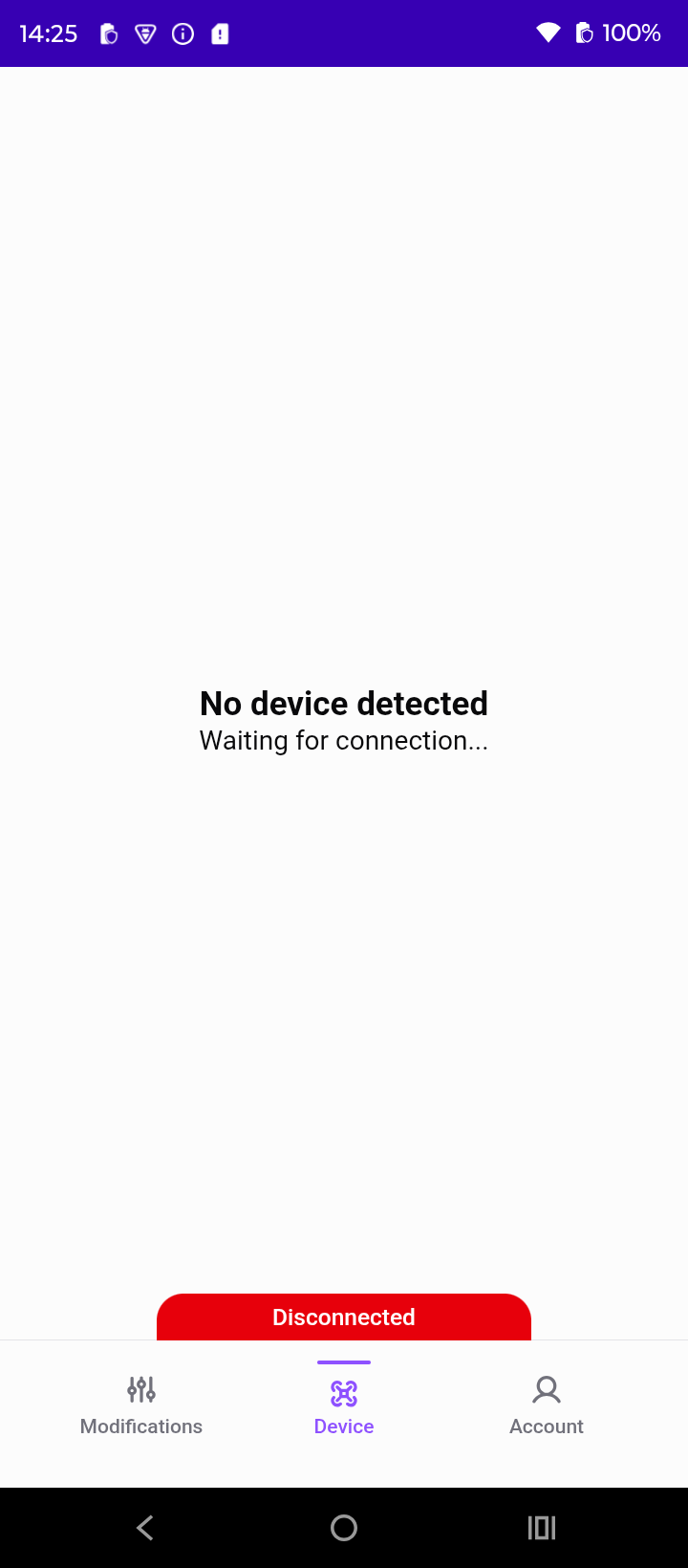
If you instead see this screen, this means one of the following things. Either the USB cable is bad/is a charging only cable, the device is not supported by DH mobile, you havent allowed USB access to the drone or you simply havent plugged the drone into the device running DH Mobile yet!
¶ Binding a Drone to Your Account
DH mobile allows you to bind upto 5 drones to your account, once bound, drones occupy one of these slots. They must remain there for 14 days before they can be removed for a new drone, this is a cooldown period to prevent abuse.
Upon opening the app and logging in, if you have a drone connected you will see this screen
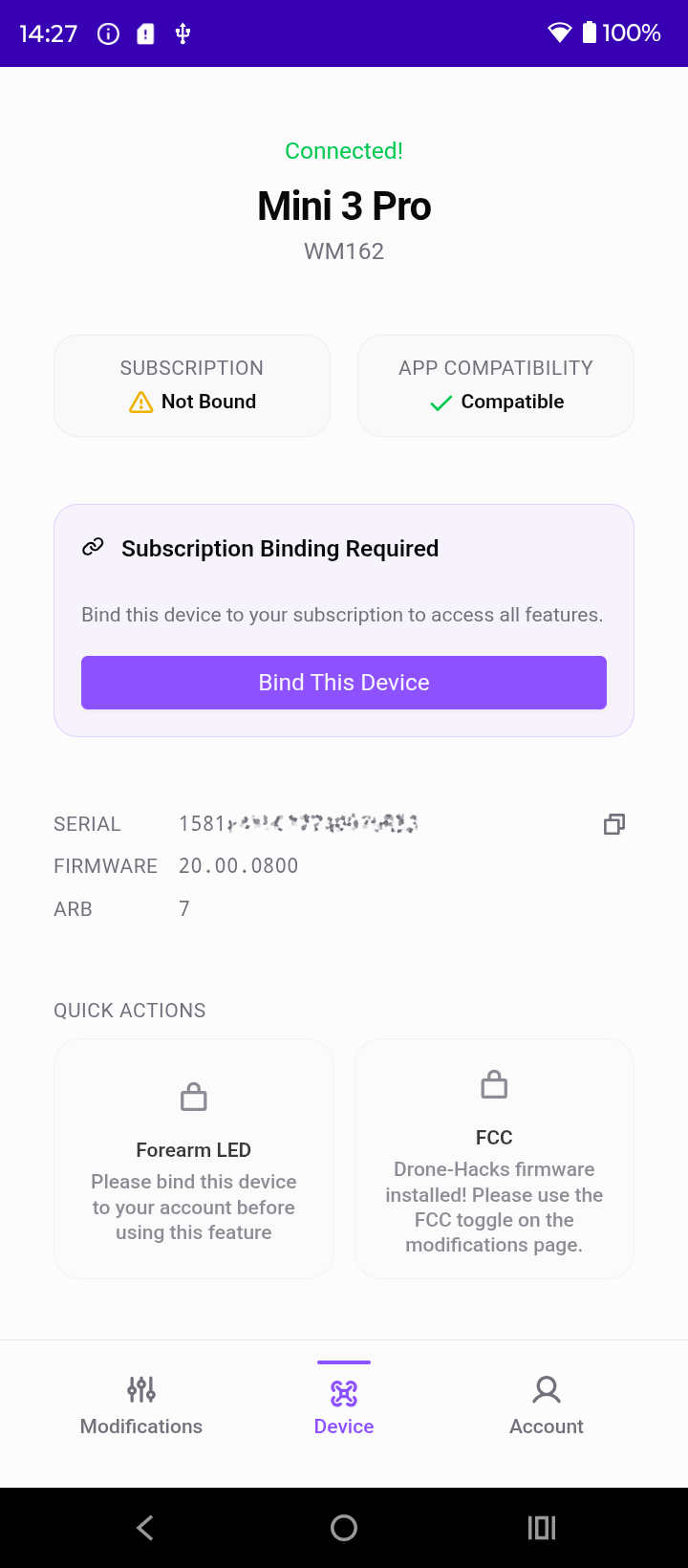
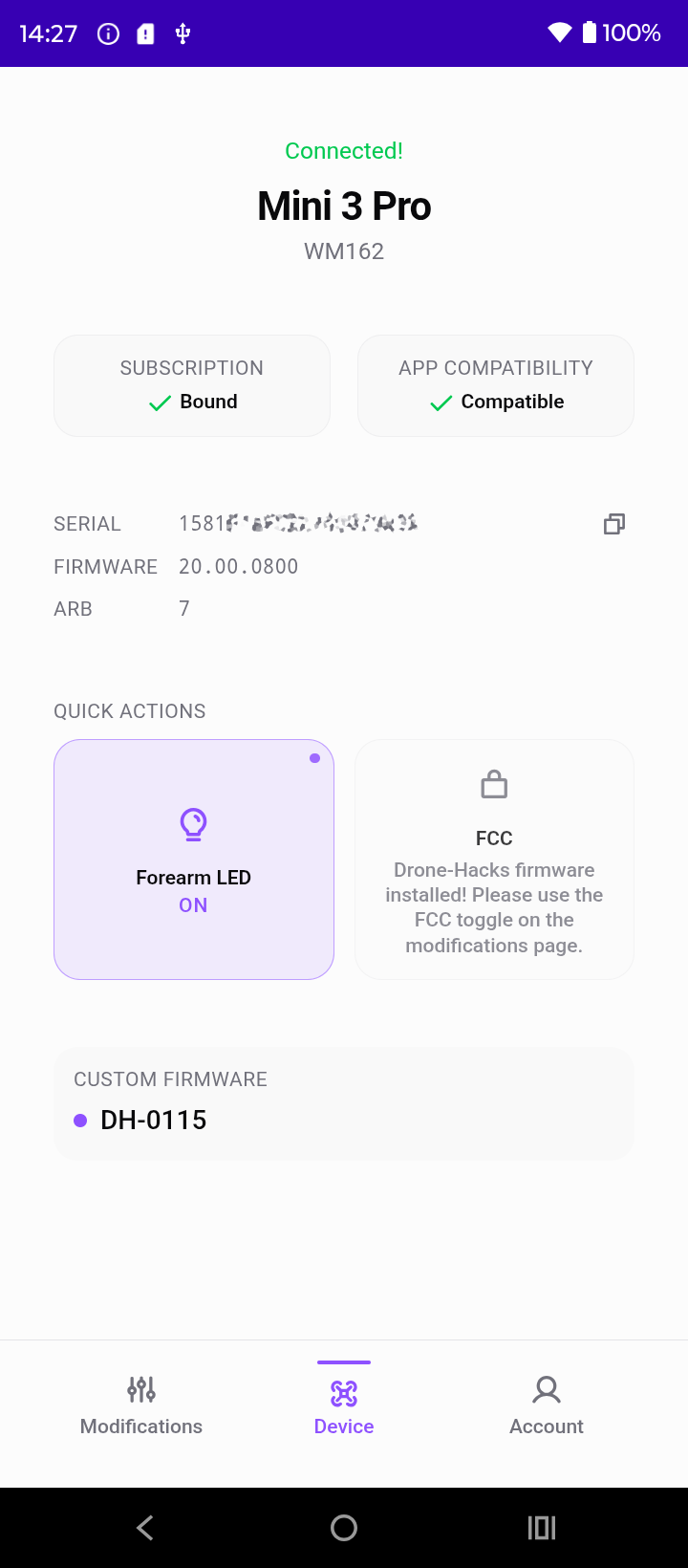
To continue, simply click on the ‘Bind this Device’ button and you should then see this screen. If your drone has already been modified with DH Desktop, you will see the current version of your DH custom firmware (as shown in the image below).
¶ Modifications
So, you came here to modify the drone, lets get straight into it! Once bound, you can tap on the Modifications tab. In this example, we're going to start with an unmodified drone that has a DH license assigned to it already using Drone-Hacks desktop.
If there are mods to apply on your drone, they will be listed here as shown. Simply tap on the one the modification to begin.
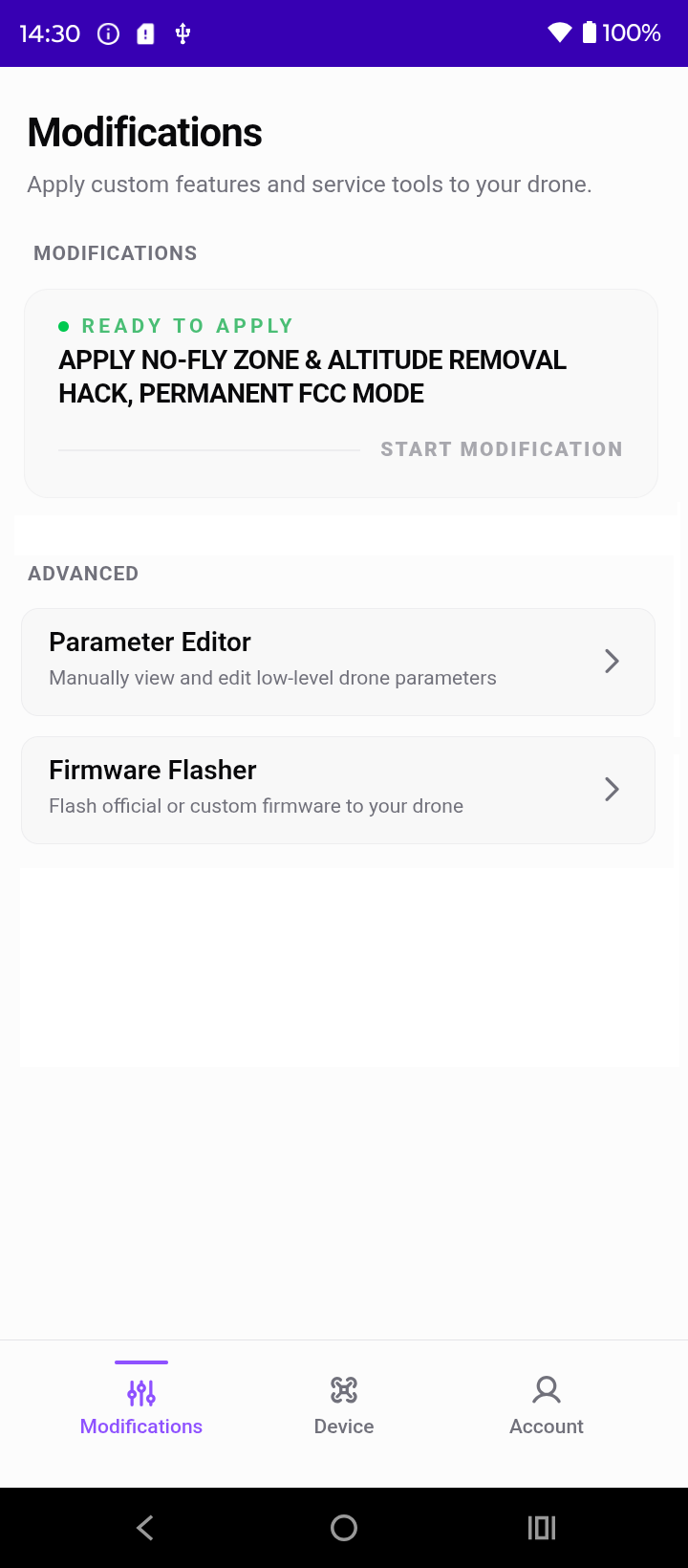
You will then be shown this message. As instructed, ensure you have a well charged battery and press ‘Apply Now’ to continue.
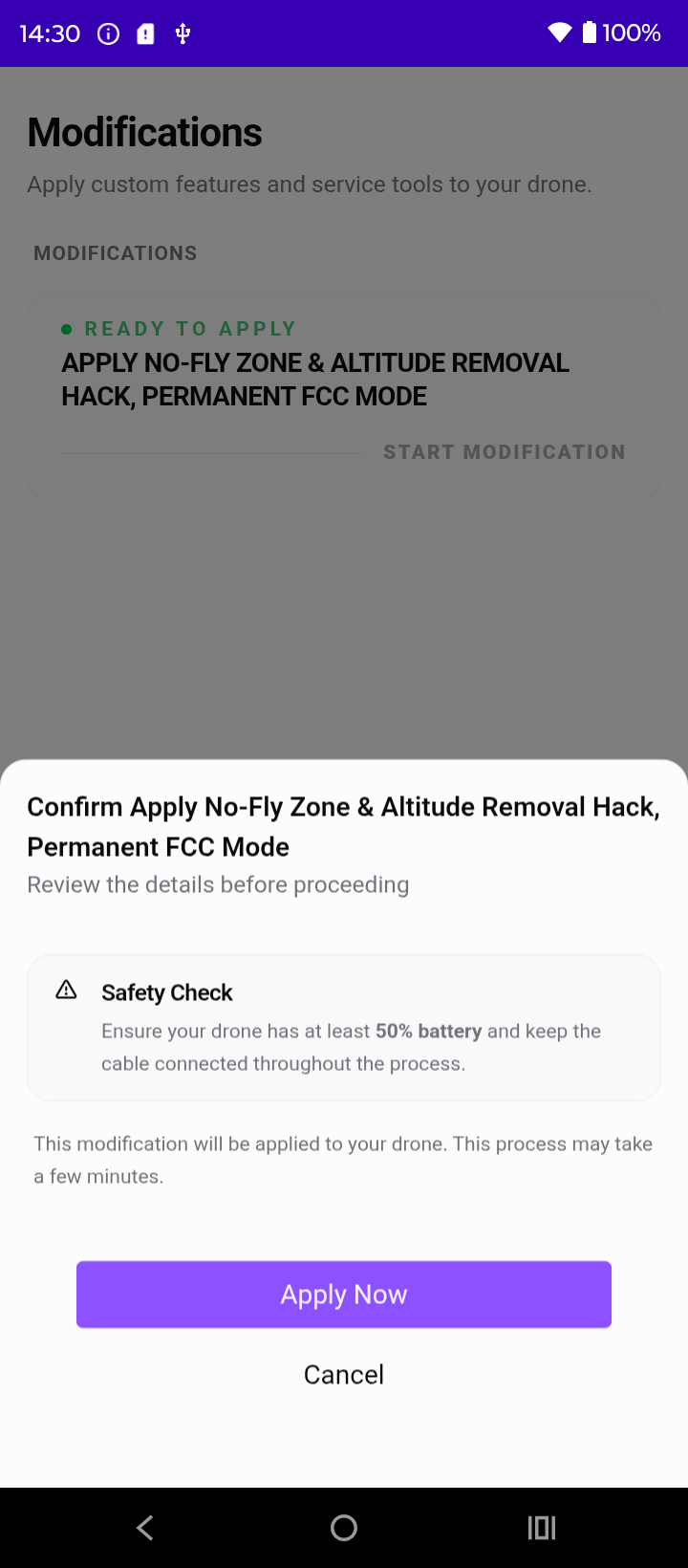
The screen will then progress to the install stage, please be patient whilst this completes
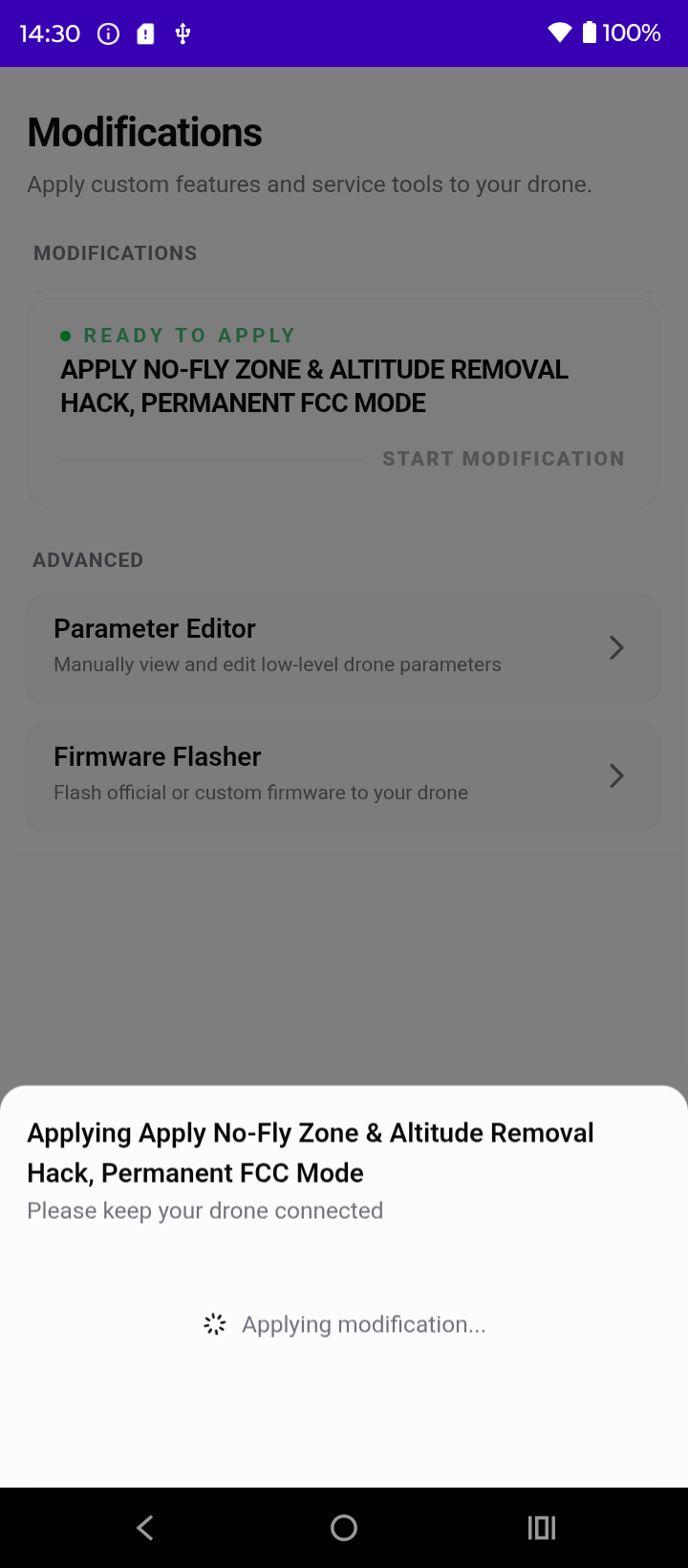
Once complete, you will recieve a confirmation message & at this point the drone may reboot. You can press the ‘Close’ button, but please give the drone a moment before doing anything else in the app & approve any reconnection messages.
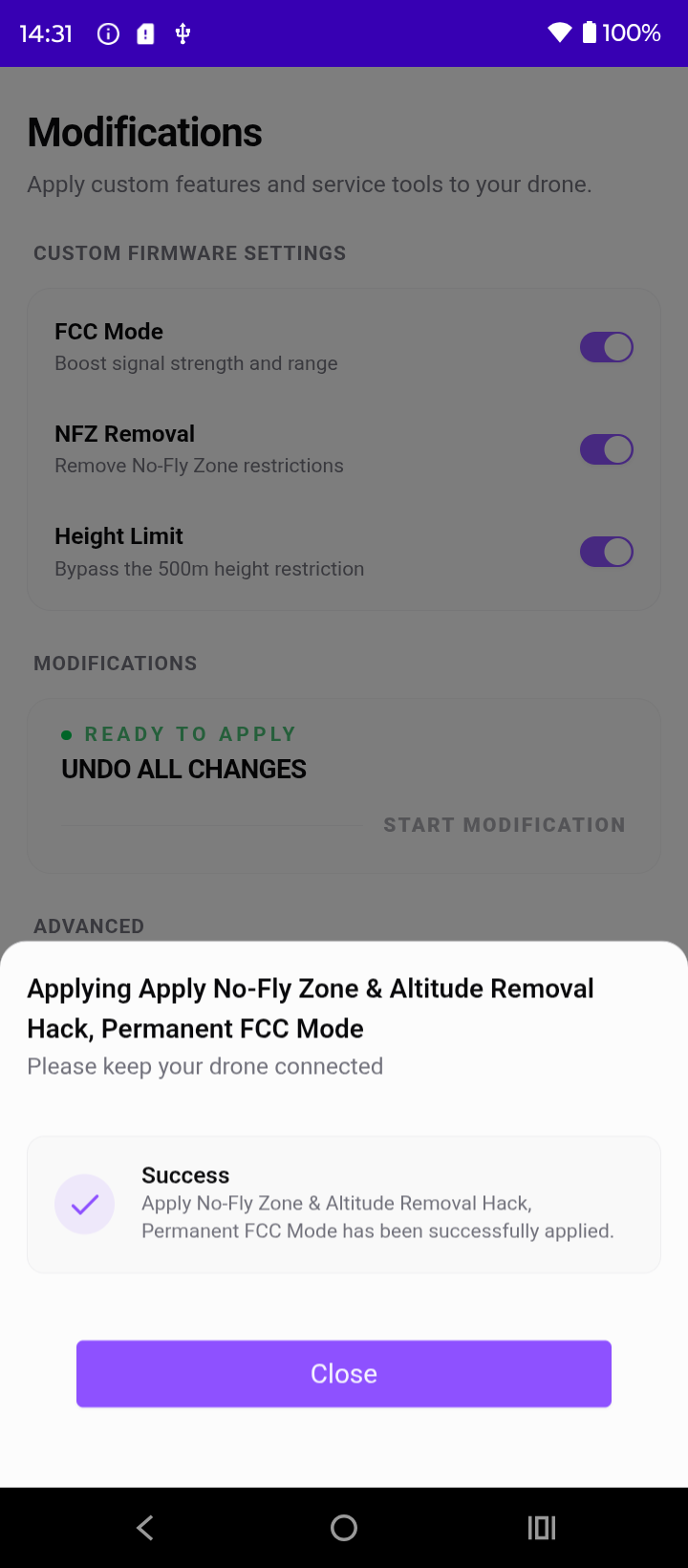
And thats it, in a few minutes you have just applied our hacks from your phone!
NOTE: Hacks are server driven, they therefore cannot be installed or uninstalled without network access on the device running DH Mobile.
¶ Parameter Editing
DH Mobile has a fully fledged parameter editor too, just the same as the desktop app, to access it, press ‘Modifications’ and then 'Parameter Editor'. From here you will need to press ‘Read from Drone’.
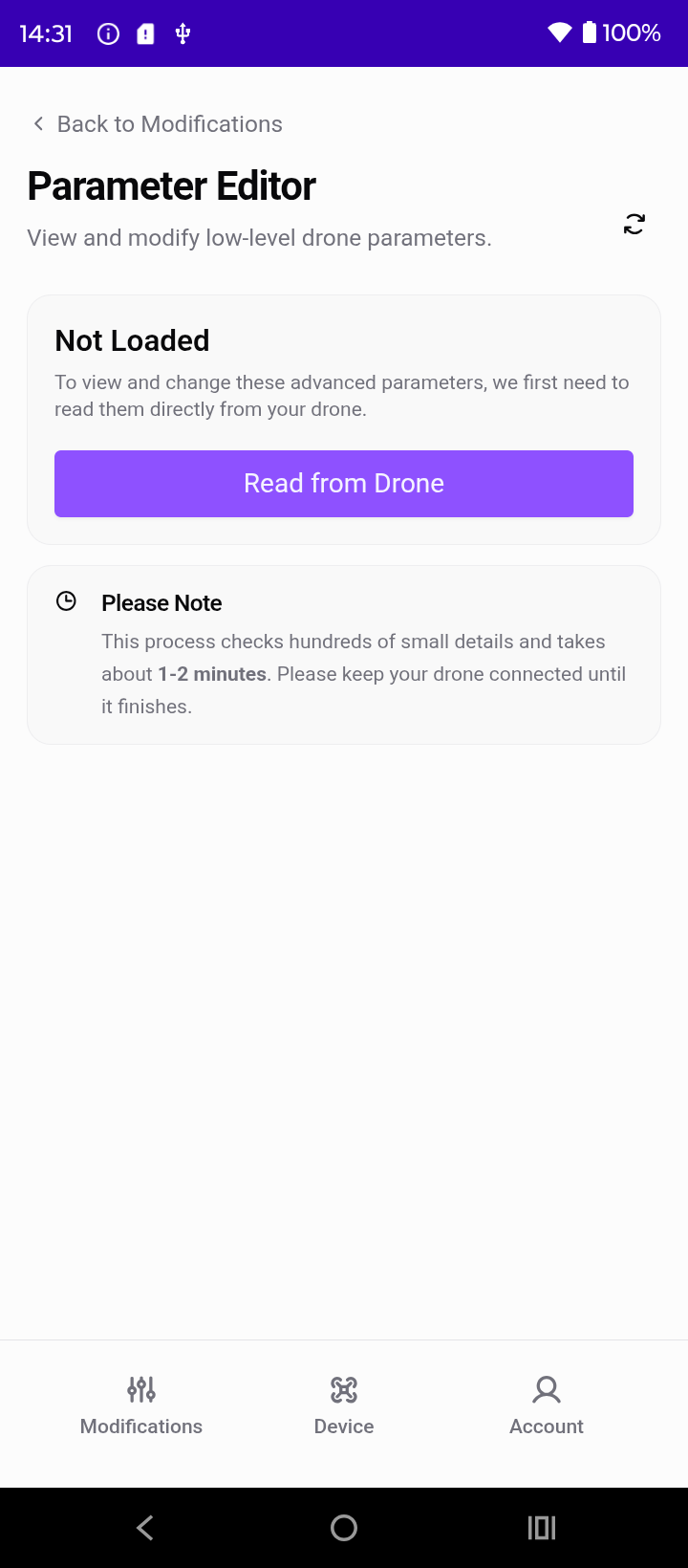
Wait a moment or two whilst the parameters are read and displayed.
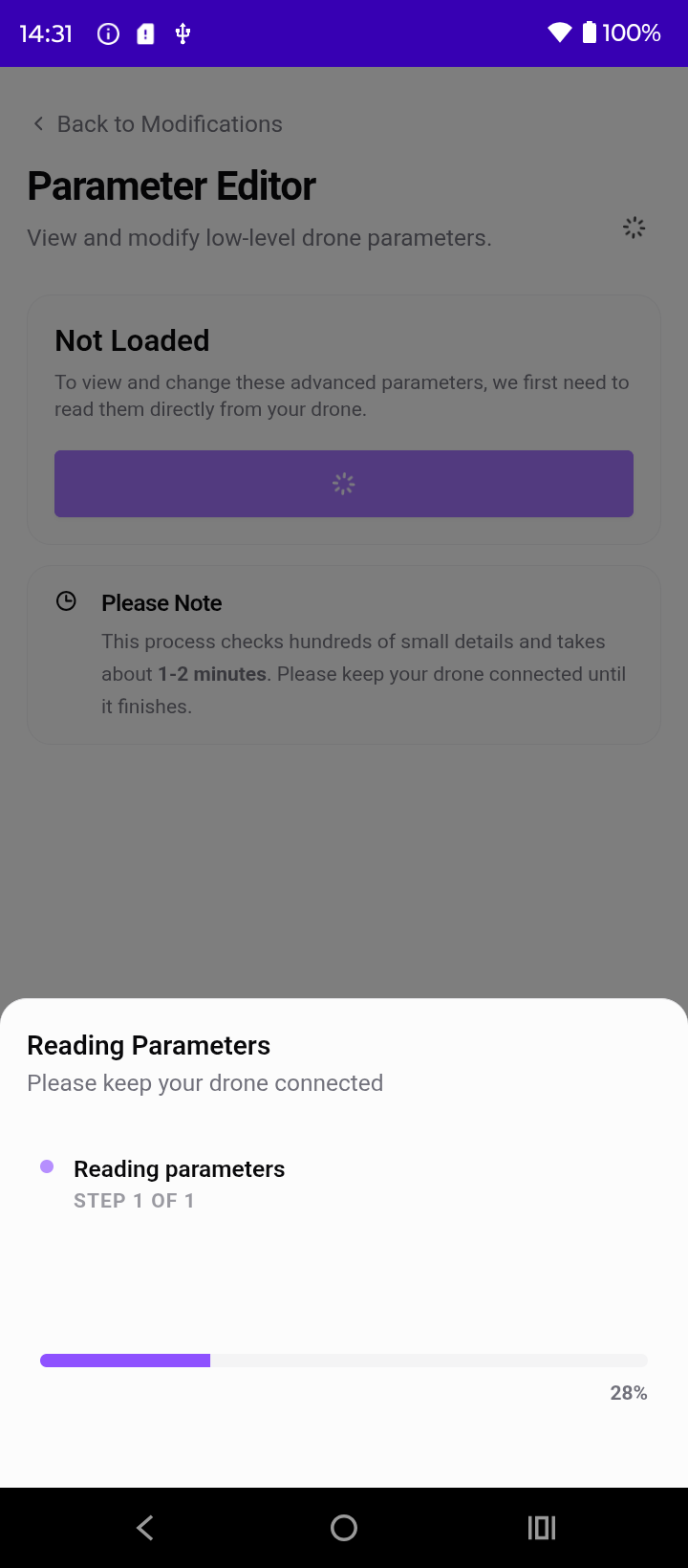
Once this finished, you can press ‘Close’ and browse or search through the parameters as you wish.
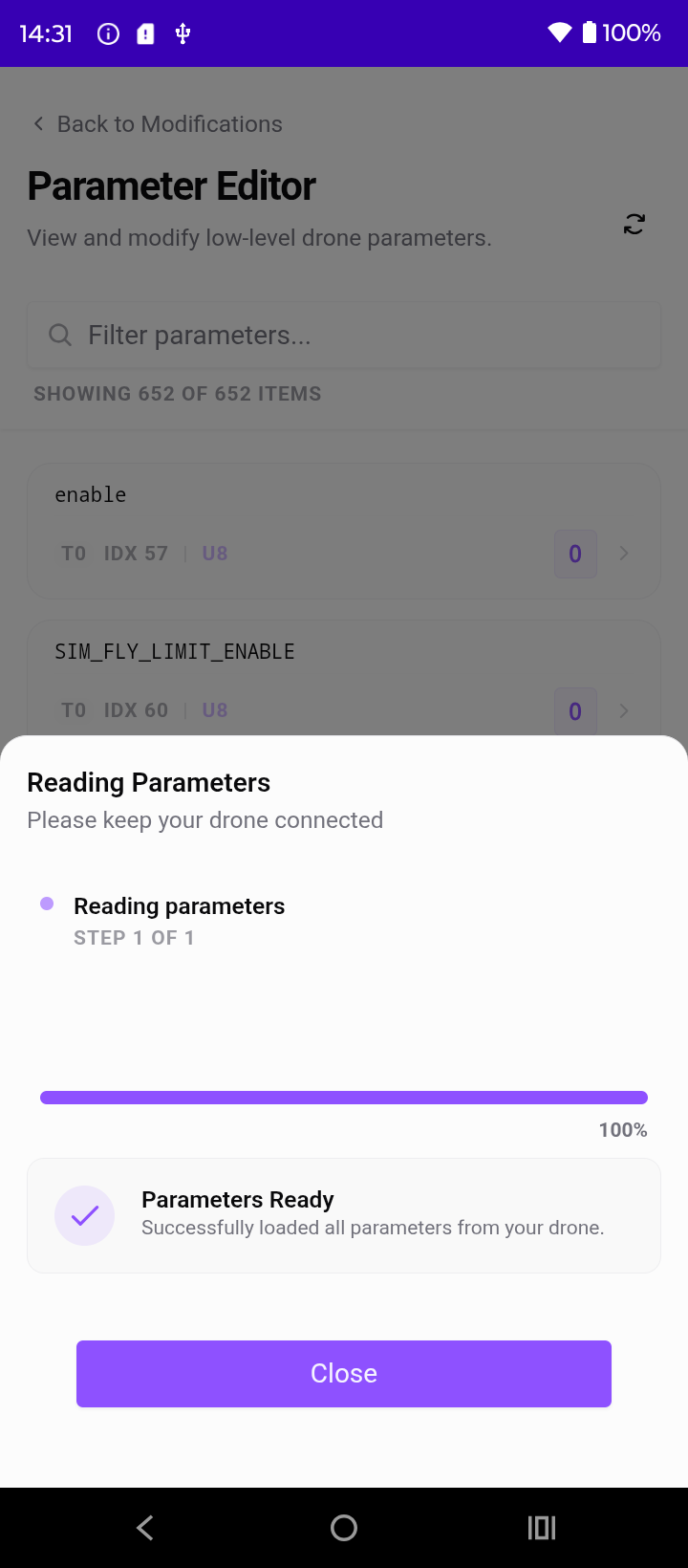
If you make changes to nay parameters, these are saved as you edit them, there is no need to press anything else to write the parameters back to the drone. As usual, not all parameters are editible and some may revert to defaults immediatly or upon rebooting the drone.
¶ Firmware Flashing
DH Mobile can upgrade and downgrade your firmware (where supported) straight from the app too. To access this, press ‘Modifications’ and then ‘Firmware Flasher’. ANy available firmwares will be shown
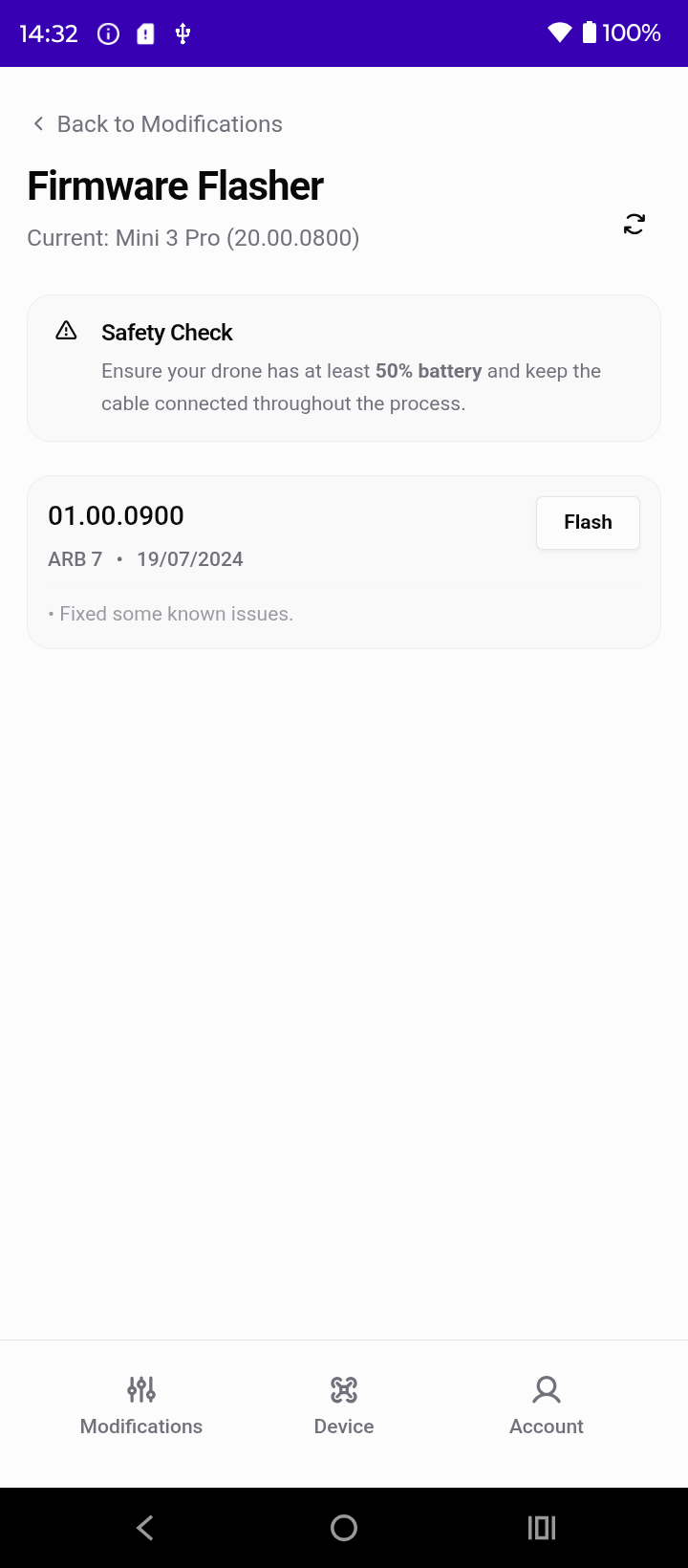
Simply tap on the firmware you wish to flash and wait for this to complete!
¶ Account Management
FInally, if you tap the Account button and then 'Subscription', you will be presented with this screen. From here you can manage all aspects of your account and subscription.
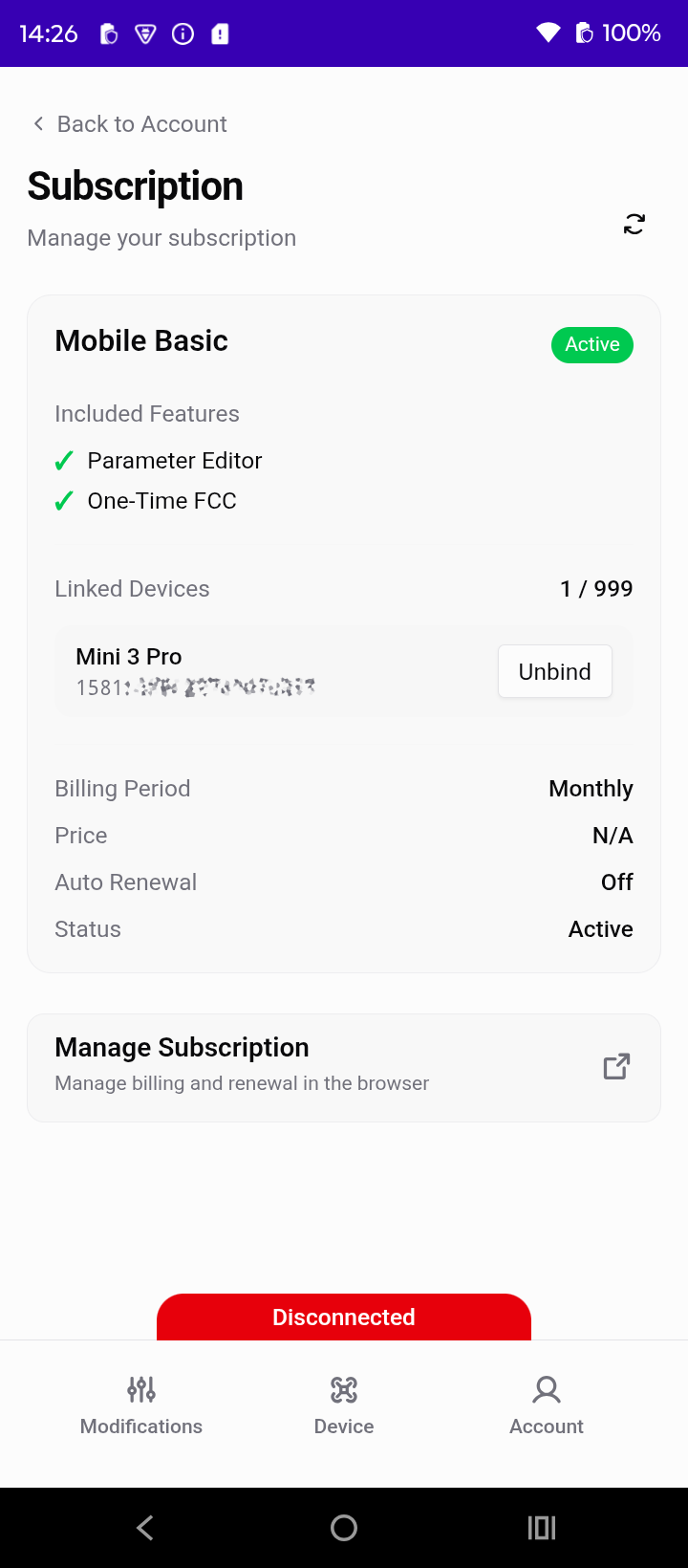
As you can see you can press 'Unbind' to remove a bound drone from your DH Mobile account. Each account can have upto 5 drones bound to it by default. Once bound, drones must stay bound for a minimum period of 14 days to prevent abuse. But after this point, if you wish you can remove one to free up space for another one. We may in the future offer other subscription packages for power users who fly more than 5 drones at a time.
For more details on how to view and manage the subscription, pleas check this guide HERE
¶ I Still Need Help
If you still need help, thats no problem at all. Simply open the app, tap the Account button and then ‘Support & Help’ and fill out the form on that page.
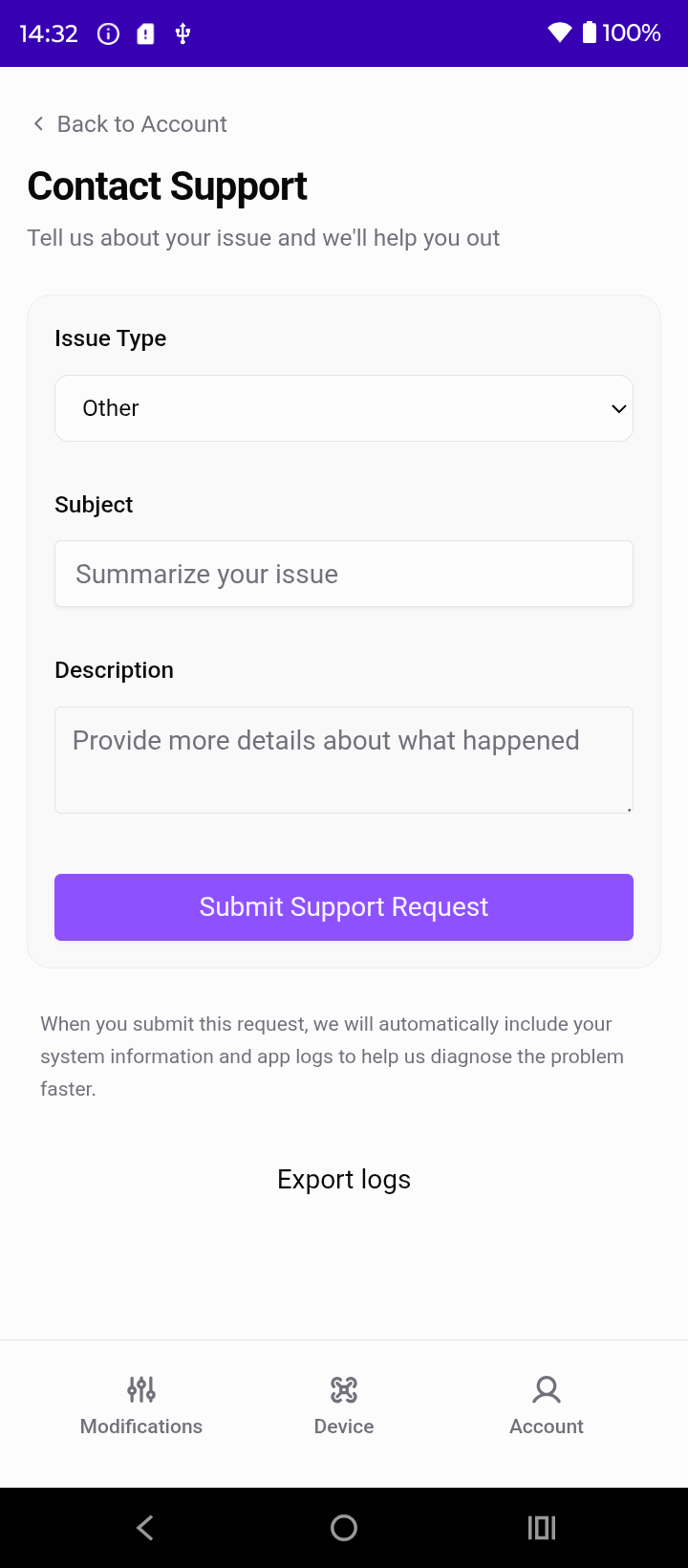
If our support staff need more details, they may ask you to export the DH Mobile logs which you can do by pressing the ‘Export Logs’ button below the help form. THis will download a .log file into your devices Downloads folder which you can then email to support as a reply to your ticket.