Once you are set up as a Drone-Hacks reseller, you will have access to the reseller panel, this guide will teach you how to use this.
¶ Accessing the Reseller Panel
The Reseller Panel is in your “My Profile” section of the website, this is the blue button in the top left, or you can go there by pressing This Link.
Once inside your profile, select the Reseller tab, or again, use This Link.
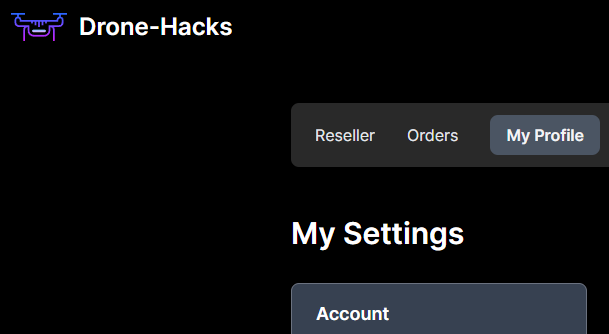
You will now see the Reseller Panel dashboard. This shows you your account status & the agreed Profit Margin (discount level) you have.

¶ Create a Customer Order
Next, we will create an order, you will click the Create Order button from your Reseller Panel and be taken to this screen, this is the order creation screen.
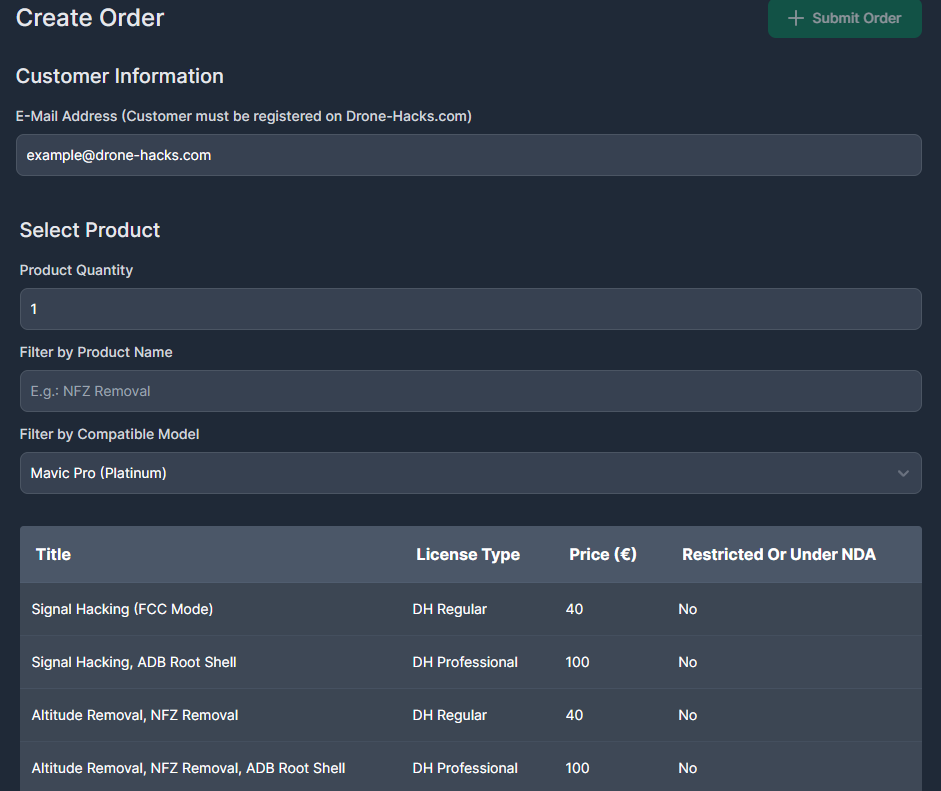
Start at the top and fill out all the fields as explained below:
| Field Name | Required | Info |
|---|---|---|
| Email Address | Yes |
Enter a drone-hacks username. This can be your own if you want to add the licenses to your account, or it can be a customers account to add the license directly to their account. NOTE: The email address entered must already be registered & have an account with us. |
| Product Quantity | Yes | Select how many licenses you wish to purchase. |
| Filter by Product Name | No | Can be used to filter License Types in the table at the bottom of the Reseller Panel page by name. |
| Filter by Compatible Product | No | Can be used to only show License Types that are compatible with the selected model of drone. |
| License Type | Yes |
What license do you wish to buy? NOTE: In this list you may see products that are very similar, but missing features, such as 4 ‘DH Regular’ licenses, some with FCC, some without. It doesn't matter which one you select. The "Licence Type" (Regular, Professional, Enterprise) is the important factor. This is due to how the backend systems are designed and used elsewhere on the website. |
Once you have filled out the form, ensure you click on the license type you wish to buy. There is no highlighting to show this is done, but the green Submit Order button will not become active until this is done. You can verify what license type you have selected by looking just above the Licence Type selector as shown in the image below.

FInally, with the form filled out, press “Create Order” and you will be sent to Stripe to complete the checkout process.
¶ Checkout
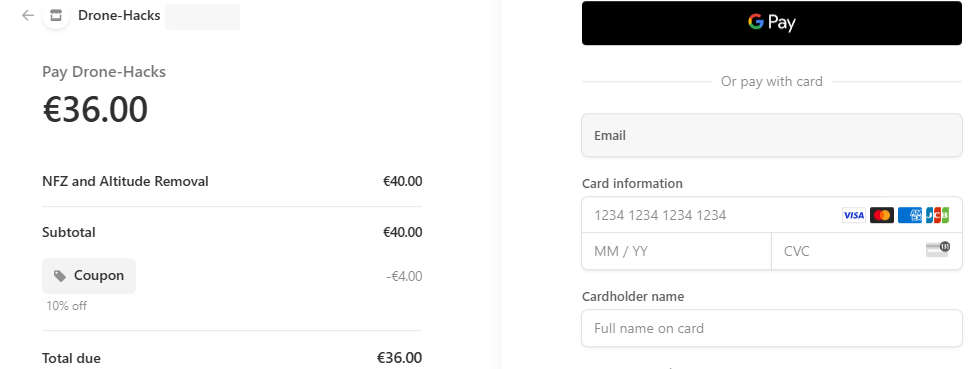
You will now be at the Stripe checkout page. As you can see, the discount code for your reseller account has been automatically applied, so please complete the checkout process to purchase the licenses.
¶ Order Complete
Once paid, you will be sent back to your Orders page and can see in this screenshot that the license (in this instance) has been added to my account.

Just like with any other order on our system, you can now download an invoice for this by following This Tutorial. From here you can use the license just like any other license purchased outside of the reseller system.
If you purchased the license using a customers account rather than your own, you will be sent back to your Orders page after making payment, however the license will have been added to the customers account directly and not to yours. You can still see the purchase in your account and can still download an invoice using the tutorial above if needed.