Drone-Hacks V2 supports the Mini 3 Pro, this page will detail the exact steps you need to perform to license and apply hacks to your drone.
Firstly, ensure you have downloaded and installed the app (we have a guide for this HERE) & that you are logged in (using this helpful guide HERE). When you're at the main Drone-Hacks page you can continue!
Next, if this is a new drone, ensure it is already activated and registered with your DJI Account, we do not bypass drones tied to alternative accounts for legal reasons, if you are trying to do this stop immediately and do not assign the license to the drone.
¶ DJI Assistant 2
Please ensure you download DJI Assistant 2 for Consumer Drones from DJI. You need this app installed, it contains USB drivers that Drone-Hacks uses to connect to your drone. Please install this app and make sure your drone is recognised in it first then please ensure it is closed before you run our software. If the drone is not recognised in DJI assistant then you need to change your USB cable or port or figure out what is on your computer that is restricting your drone from being accessed, this can be a whole number of things ranging from your firewall to your antivirus or even phone sweets have been known to restrict access. Leaving DJI assistant open while trying to run our software will stop our software from seeing the drone, it connects in exactly the same way.
¶ Connect Your Drone
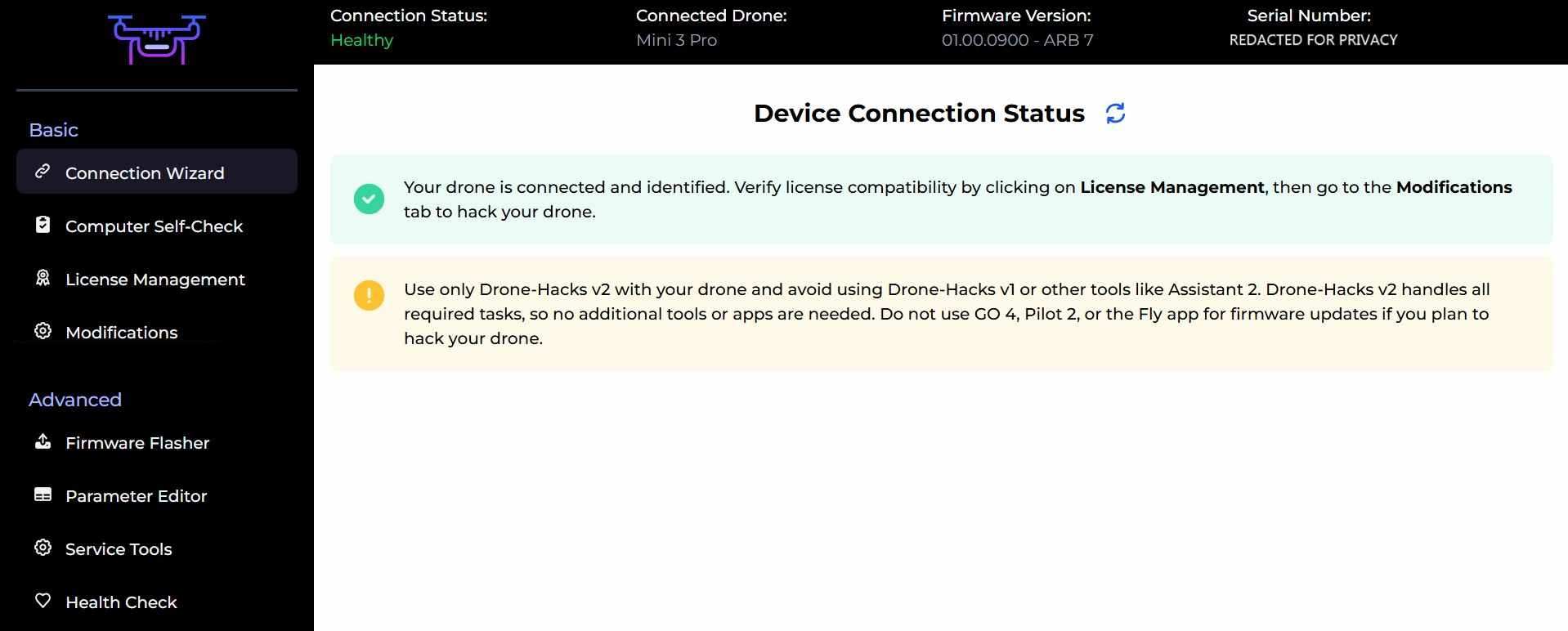
Connect your drone to your PC using the included USB cable. After a few moments the drone should be detected and you will see this screen
¶ Apply a License
Each drone to be hacked needs its own license. Licenses are described in more detail on THIS page, we will assume you have read this and understood the type of license you need.
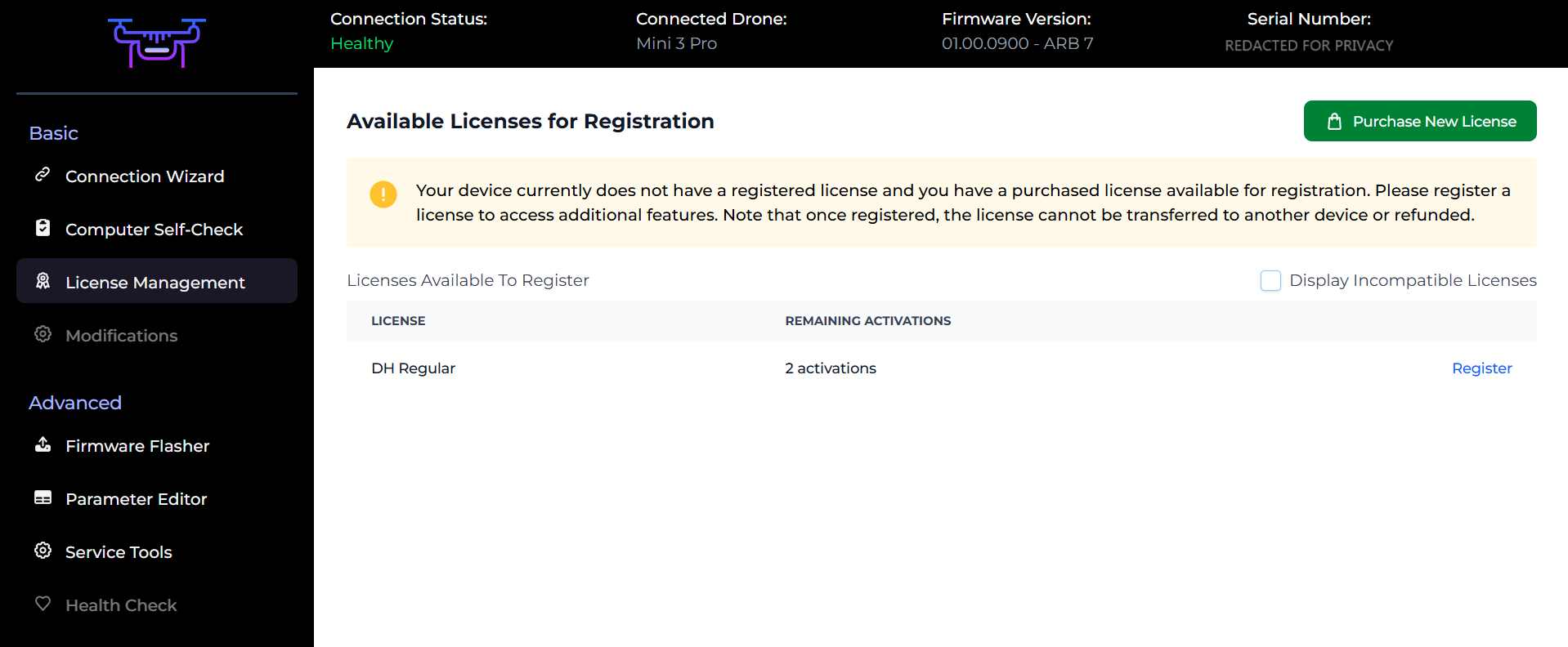
Simply select “License Management” and you should see the “DH Regular” license you purchased. Click the “Register” button to bind this license to your drone.
¶ Apply Your Hacks
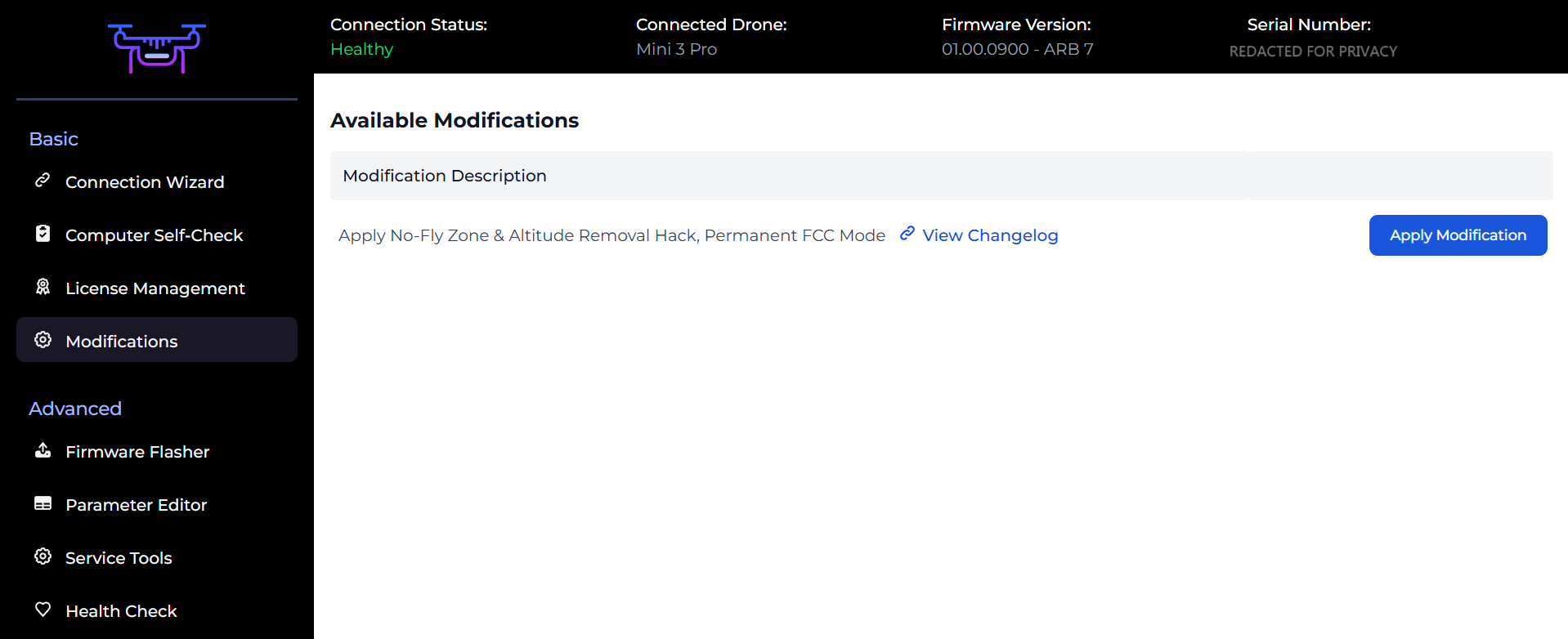
With the drone now licensed, you can apply any available hacks to your drone. To do this, select the Modifications button and then click “Apply Modification”
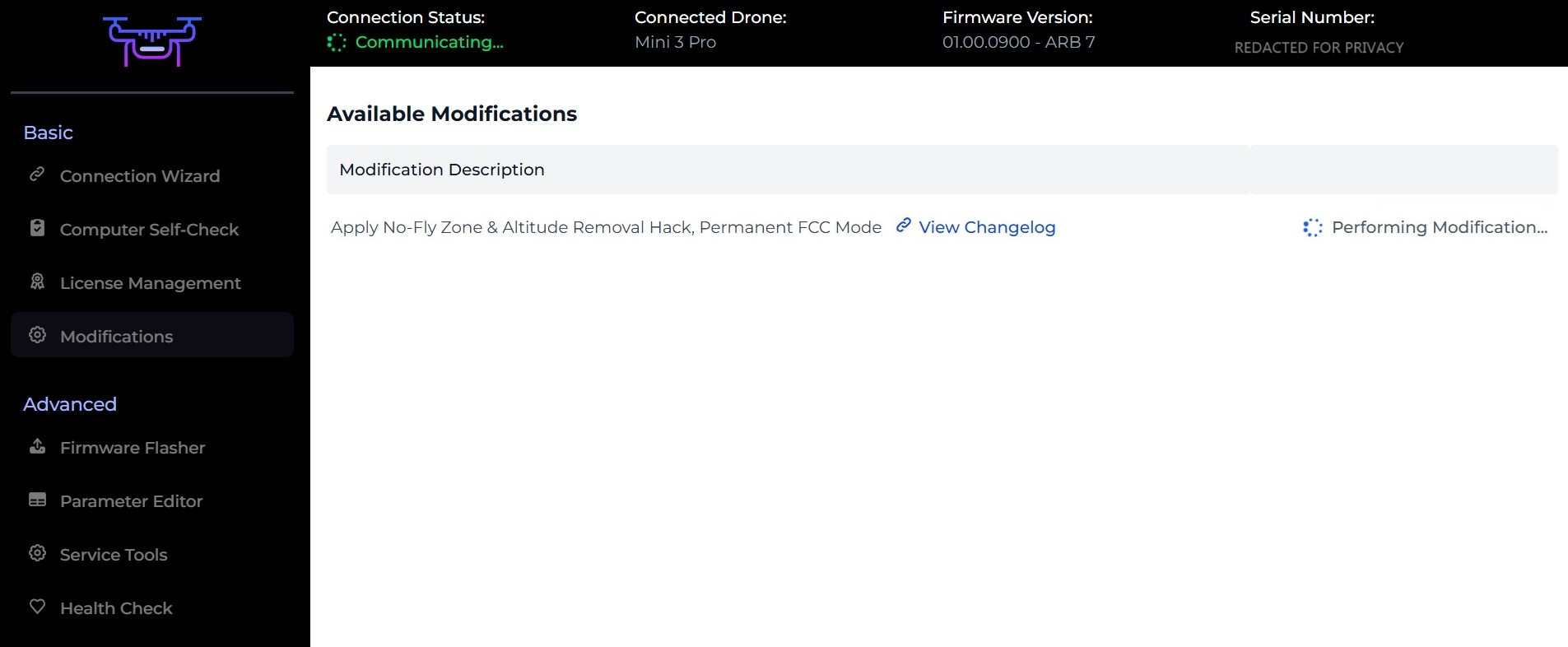
The hacks will then start to apply, please wait for them to complete
After a few moments, you will see the message below. As stated, please allow the drone to reboot automatically. You will hear the USB disconnect and reconnect sound and you will be sent back to the main Drone-Hacks screen. At this point your drone is rebooting. Please leave it connected to the USB cable until it is detected once more by the software
Once this is done you can disconnect the USB cable and go and enjoy your new hacks!

Once it's completed, click on “MODIFICATIONS” on the left hand side again and then you are then presented with the following screen:
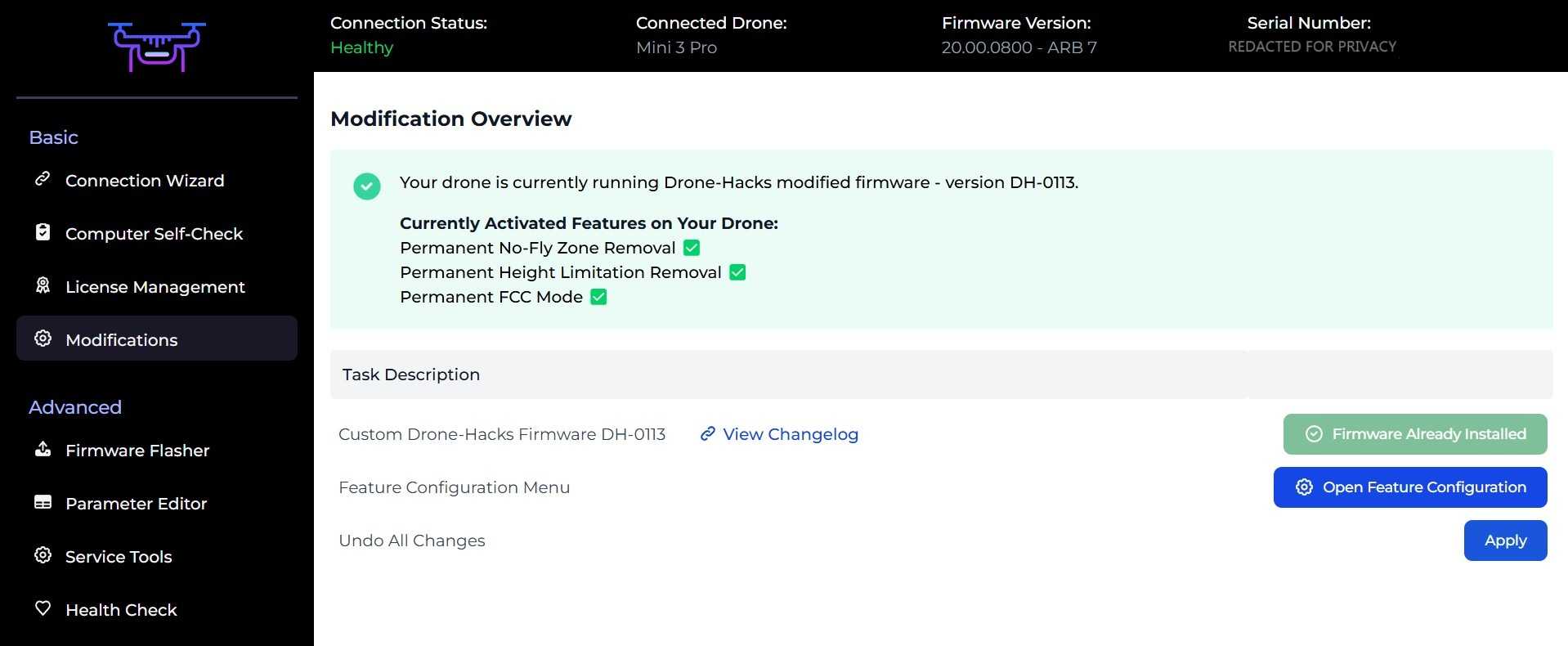
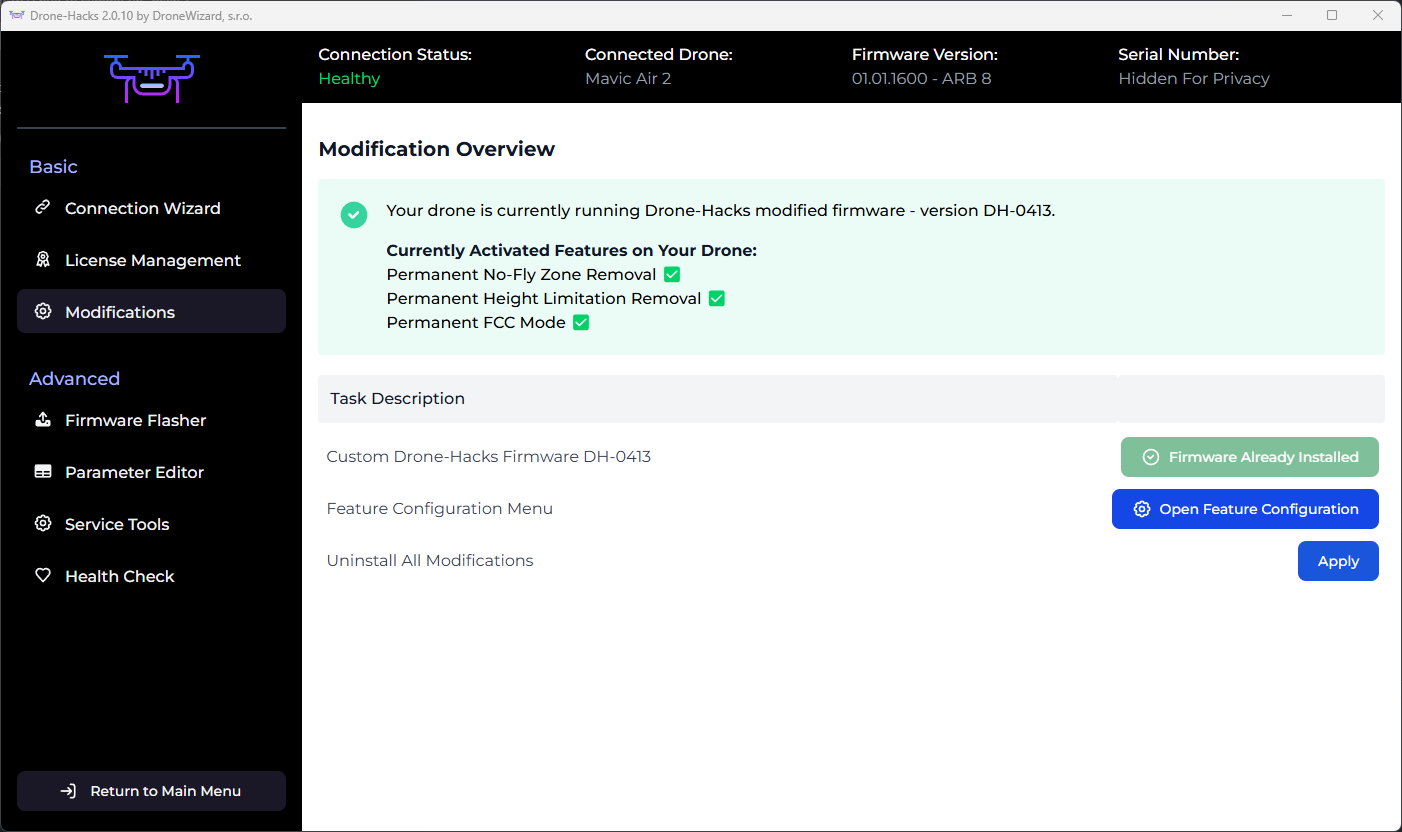
This is showing that the hacks are fully installed on your drone, congratulations!
From here you also have the option to enable/disable specific areas of the hack in the section marked “OPEN FEATURE CONFIGURATION”
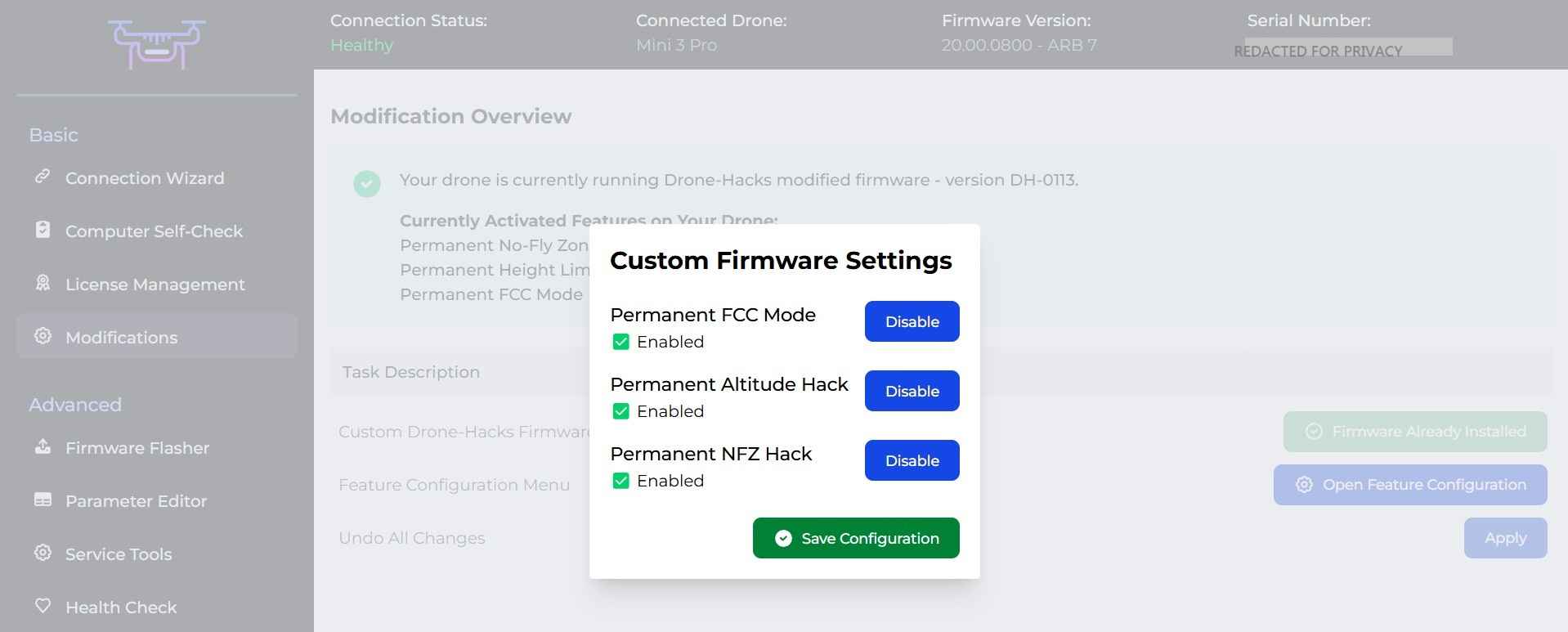
To disable a specific item, just click “DISABLE” then “SAVE CONFIGURATION” to save it to your drone.
¶ Enable FCC Power
For legal reasons, customers outside of regions where FCC is the standard (US, Canada and a few other places) the FCC hack will be enabled automatically as these regions are already using FCC power levels. For customers in CE regions of the world (Europe and most other places) you must now manually enable the FCC hack.
To do this, please select the ‘Modifications’ tab and then click on “OPEN FEATURE CONFIGURATION”
From here simply click ‘Enable’ on the “Permenent FCC Mode” option.

My Firmware Version Changed After Hacking
This is completely normal and expected behavior. Do not, under any circumstances, attempt to flash or overwrite the firmware version, as doing so will permanently damage the drone. You cannot perform an update with a modified version without first uninstalling the modification.
¶ Not Already on the Recommended Firmware?
If your drone is not on the recommended firmware, a message will be displayed telling you what the recommended firmware is. This can be flashed using the inbuilt Firmware Flasher as shown here. For this drone, the recommended firmware is 01.00.0900, rather than leave you to flash this yourself, DH can automate this.
The screenshots below are for a Mini 3 Pro, but the process is the same for any model.
If this is the case, you will see this message in the Modifications tab
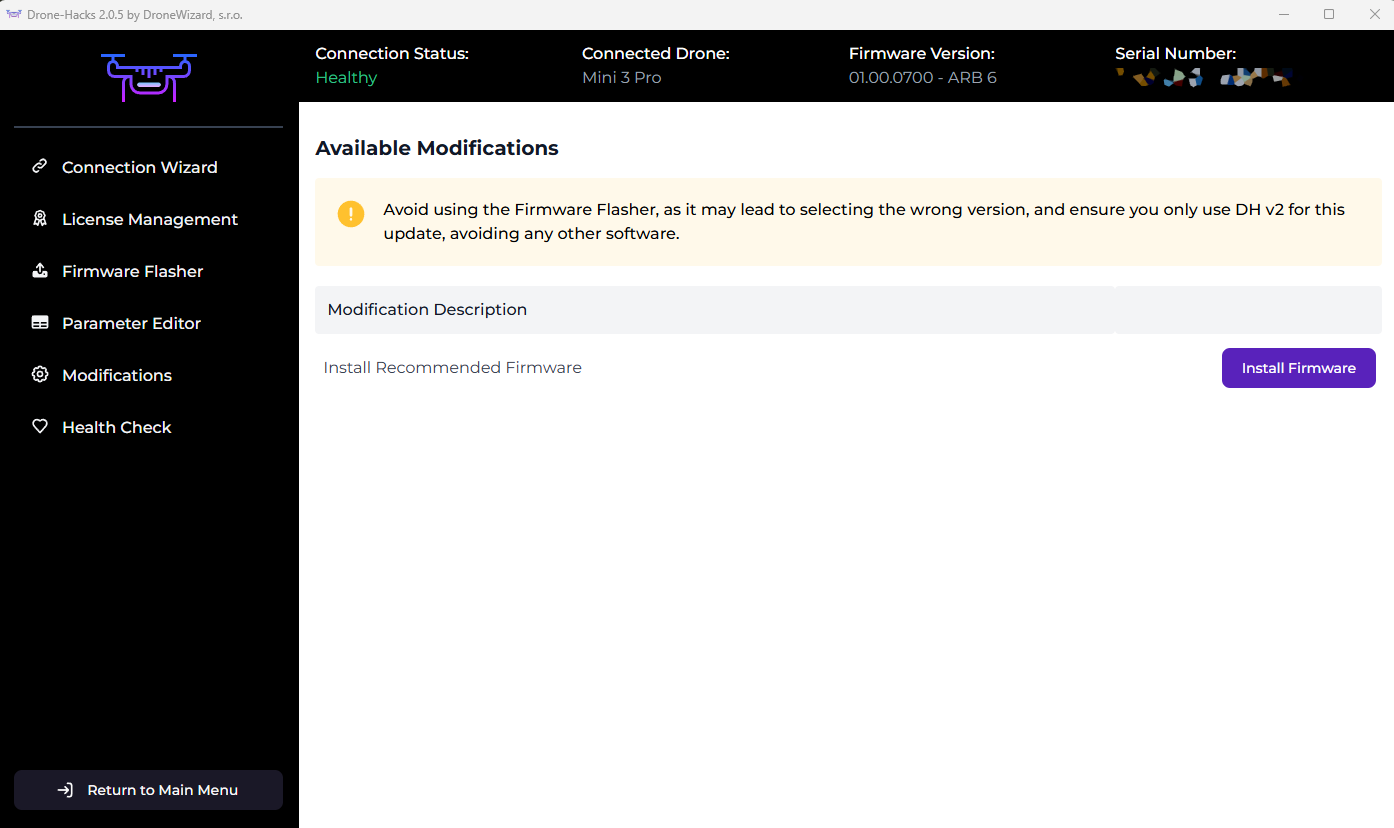
Flashing to the recommended firmware is as simple as pressing “Install Firmware”, you will be shown this message once you click it.
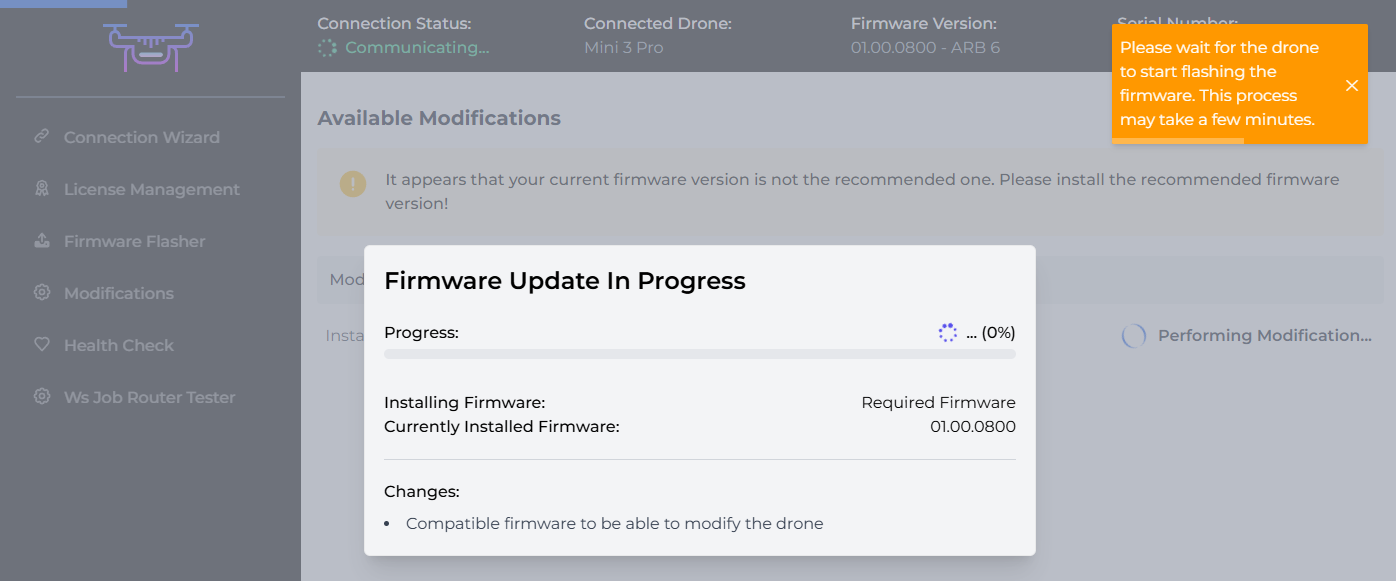
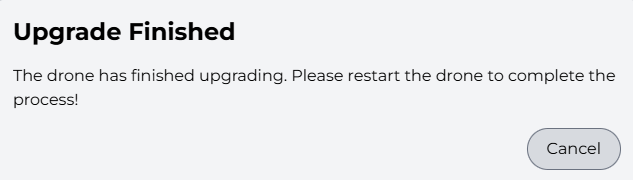
The firmware will immediately begin to install. Leave the drone powered on and connected to your PC until you receive the completion message. Once you see the message below, manually power off and then back on the drone, then click "Cancel", your new firmware is now fully flashed & you can move on to applying hacks!
¶ Uninstall Hacks/Returning to Stock
If for whatever reason you wish to remove all Drone-Hacks hacks and return your drone to stock configuration, this is also now super easy to do. Simply click the Modifications button and select “Apply” next to the ‘Undo All Changes’ option.
¶ Are My Hacks Installed?
To verify if the hacks are installed you can simply check the Modifications tab. If you see this green banner, you're good to go:
However, if you wanted to check in the real world, the easiest way is to do one of the following things
- Check for FCC mode (if applied) by using this guide. This will show you if the FCC mode is active. If it is, the hacks are applied.
- In DJI Fly, set the maximum height limit of the drone to a very low value such as 20 metres. If you drone fly's higher than this, then the hacks are applied.
- In DJI Fly, edit the device name by opening the Settings menu and then tap in About. You will see a field called “Name” which can be edited. Enter the command DH About to verify if hacks are installed.
PLEASE NOTE: We do not modify the DJI GO/Fly app in any way, so you will still see a maximum limit for height within the app, NFZ areas and receive warnings on screen, but the modification will ignor them.