Drone-Hacks V2 can now install a dual-mode switcher app onto your RC. This means that your RC Pro can become an RC Pro Enterprise and your RC Pro Enterprise can become an RC Pro. For heavy drone users, this could mean you only need to carry a single RC with you for multiple drones.
RC Pro Mode Supported Drones
- Mavic 3, Mavic 3 Pro, Mavic 3 Classic, Air 2s, Mini 3 Pro
RC Pro Enterprise Mode Supported Drones
- Mavic 3 Thermal, Mavic 3 Multispectral, Mavic 3 Enterprise
Firstly, ensure you have downloaded and installed the app (we have a guide for this HERE) & that you are logged in (using this helpful guide HERE). When you're at the main Drone-Hacks page you can continue!
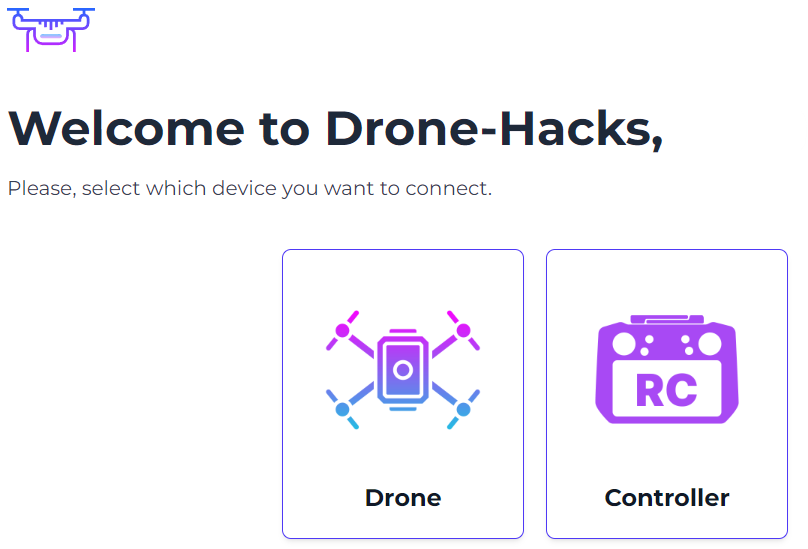
¶ 1. Select “Controller” option on the main screen
¶ 2. Connect Your RC
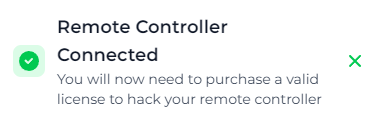
Connect your RC to your PC using the included USB cable. After a few moments the RC should be detected and you will see this message in the Drone-Hacks window.
¶ 3. Check Compatability
Prior to purchasing or assigning a license, we recommend that you verify if your computer is compatible with the hack process. This check verifies Drivers and USB communications are all working and stable.
To do this, click the “Self Check” option. Drone-Hacks needs administrator permissions to do this, so if you see this button, simply click it to auto-restart the app as an administrator.
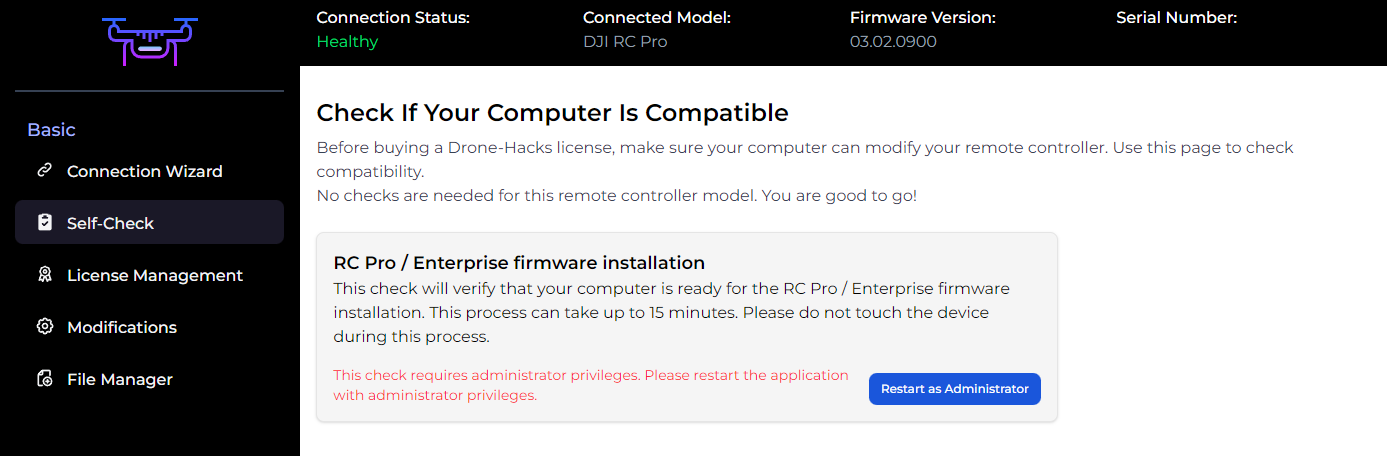
Once the app is running as admin, click the “Run Check” button to begin
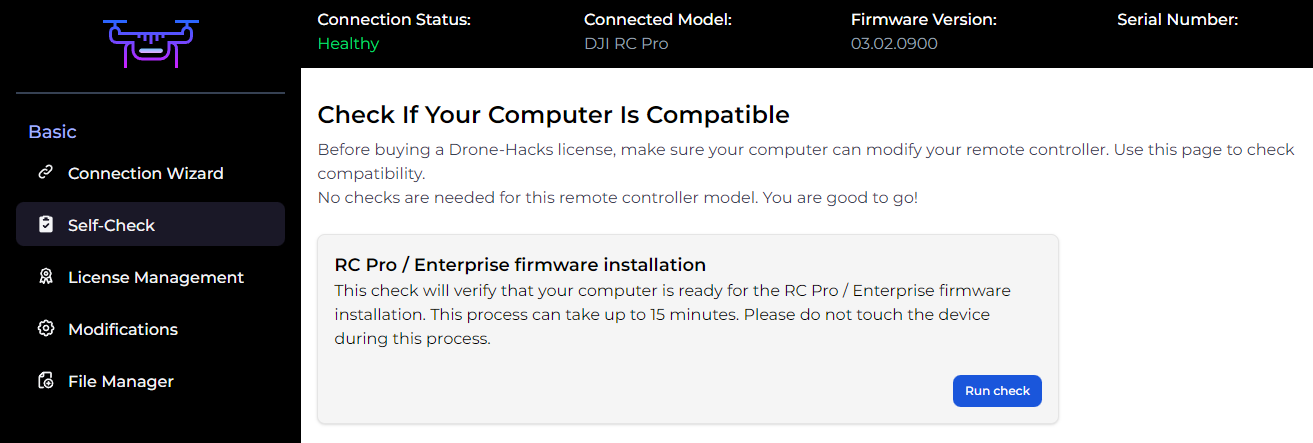
Initially, you will see this message, this verifies that the drivers are installed and that they are correct ones and are working correctly.

At this stage your RC will reboot into ‘Fastboot’ mode, please do not touch any buttons on the RC or unplug the USB cable, simply allow the process to finish. A screen like this will be shown on your RC.
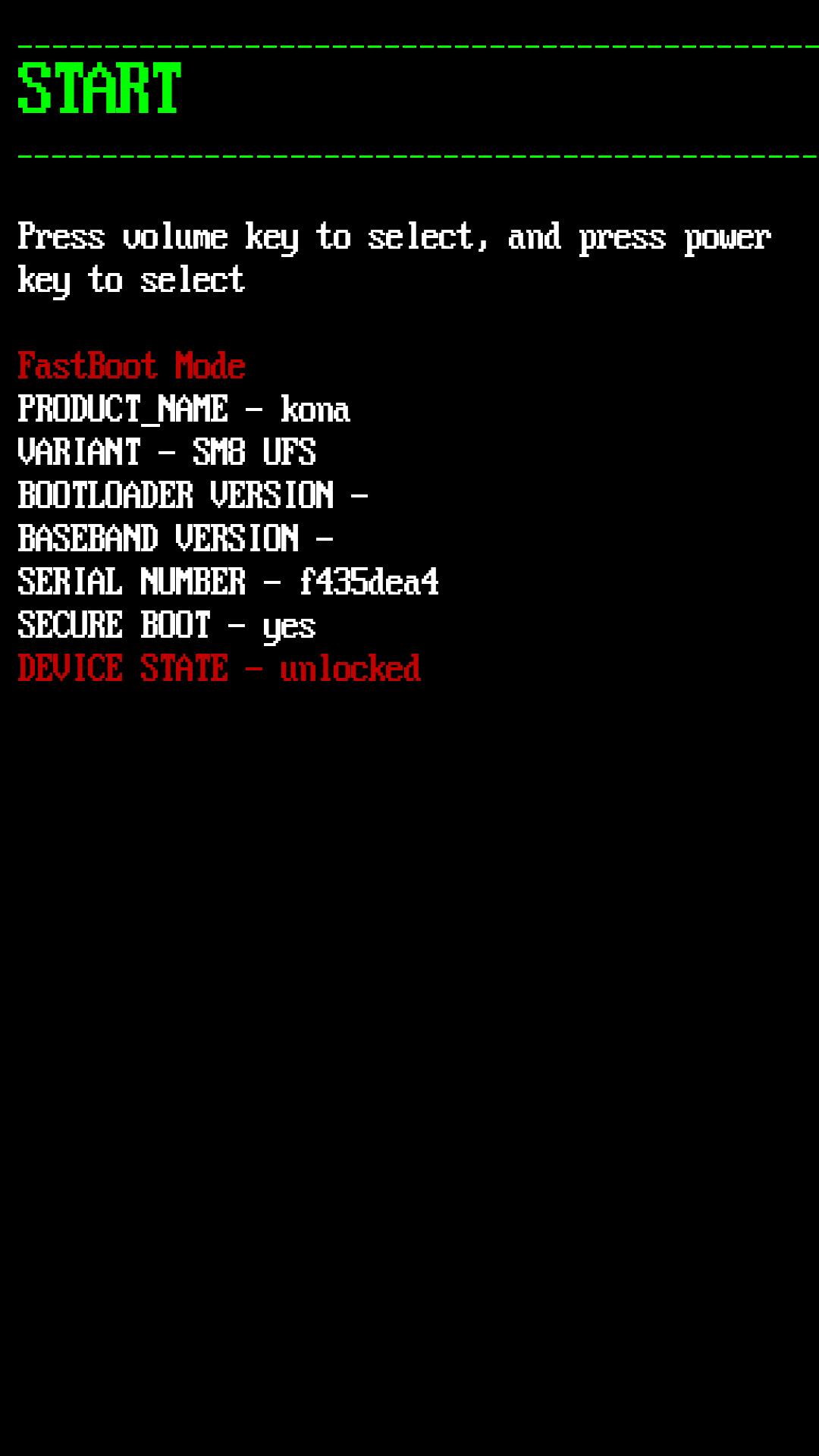
When in fastboot mode, the stability of the USB communication is checked.

And then it will move on to a finalizing screen. After this is completed, the RC will boot back into its normal mode.

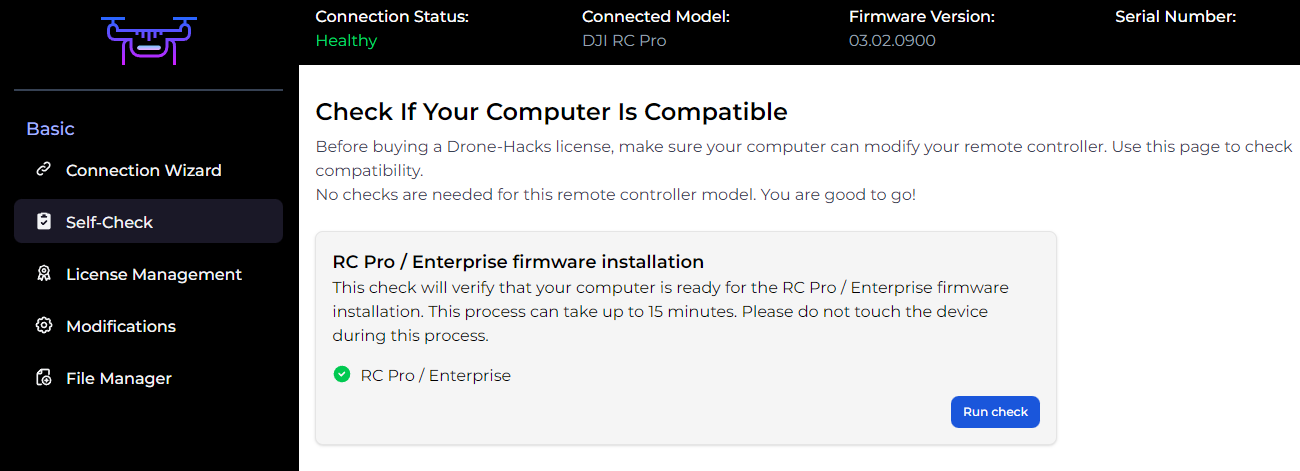
If the checks passed, you should see this screen, you now have a green check mark which means you can safely assign a license and proceed.
¶ 4. Pair a license
Now, that Drone-Hacks has recognized your RC and we have verified compatibility, you will need to pair a license.
In-case you need help with this, please see this generic guide for assigning licenses to devices in Drone-Hacks License Guide
¶ 5. Install Modifications
With the RC now licensed, you can apply any available hacks to your RC. To do this, select the Modifications button and then click “Apply Modification”.
To install the dual-app mode modification, press “Apply Modification”.
If applying modification fails, check-out the troubleshooting section on the bottom of this page!
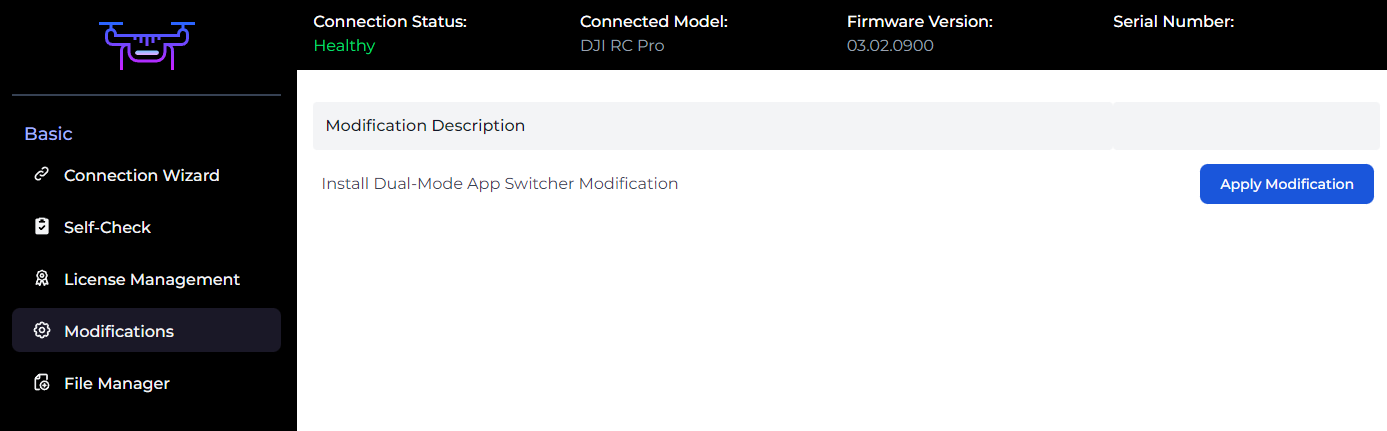
You will then be taken to this page. You should press the “Setup Computer” button to begin, at which point your RC will reboot into Fastboot mode again. As before, simply let it sit, do not press any buttons on the RC or unplug the USB cable
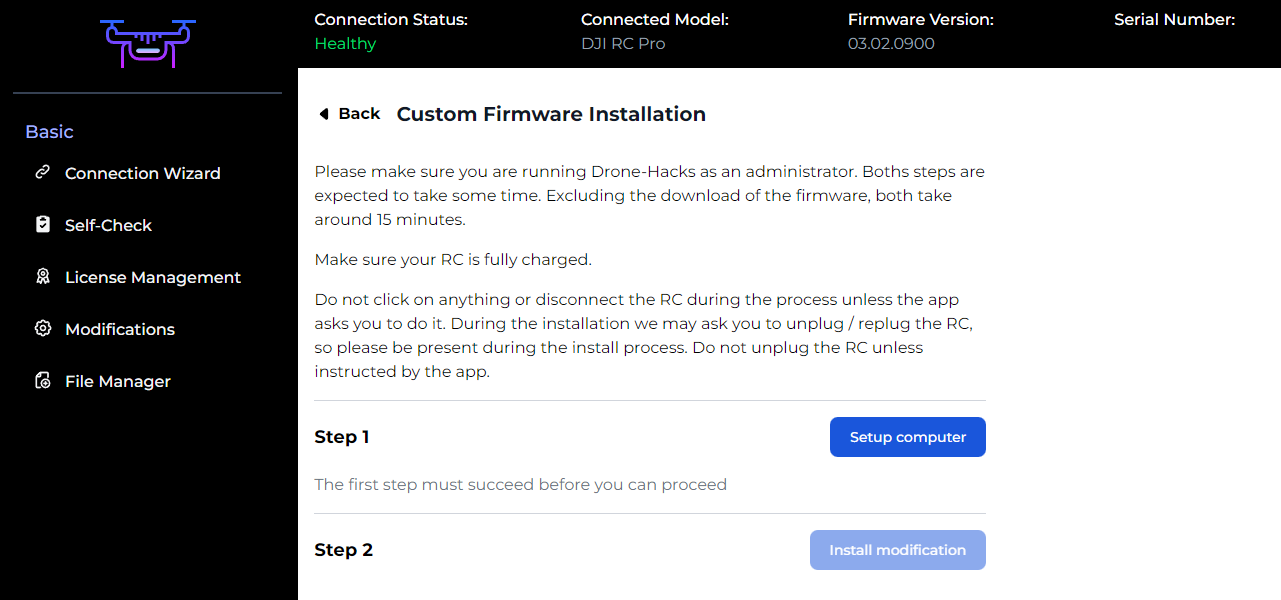
If everything went well, you will see a confirmation message and can now proceed to the install phase. Simply press the “Install Modification” button
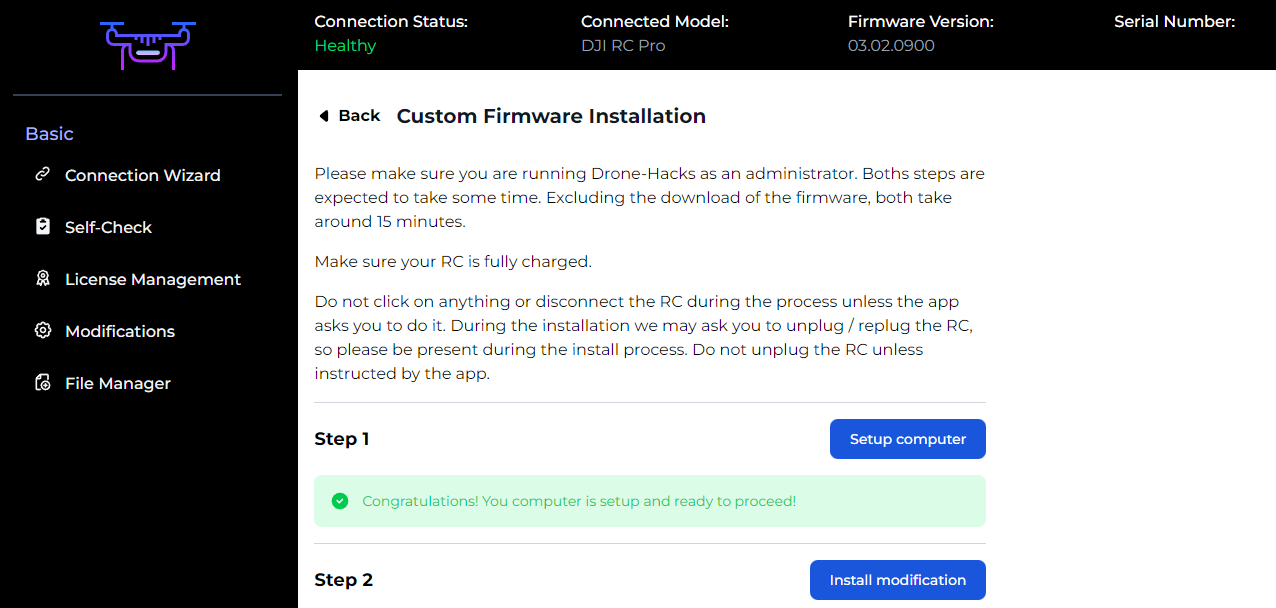
You will start to see various progress bars indicating the steps, firstly, the modification package is downloaded from our system. This may take some time depending on your internet speed.

Next, the files are unpacked and prepped to be sent to the RC

At this stage, you may find the progress indicator stalls at 50% for a few minutes, this is normal. You will hear the fans inside the RC Pro ramp up to full speed. After a few seconds, the fans will calm down and the RC will make a double 'beep', it will once again reboot into the Fastboot mode

At this stage, simply let the RC Pro sit, once the flashing is completed, the RC will automatically reboot and sit at the main screen. it may look like its finished, but it is not, allow it to sit here and it will reboot itself again.

Once you see the Finalizing stage you should pretty shortly see the DJI Introduction video. You can skip this video to quieten things down (or not, its your choice) but do not do anything else on the RC

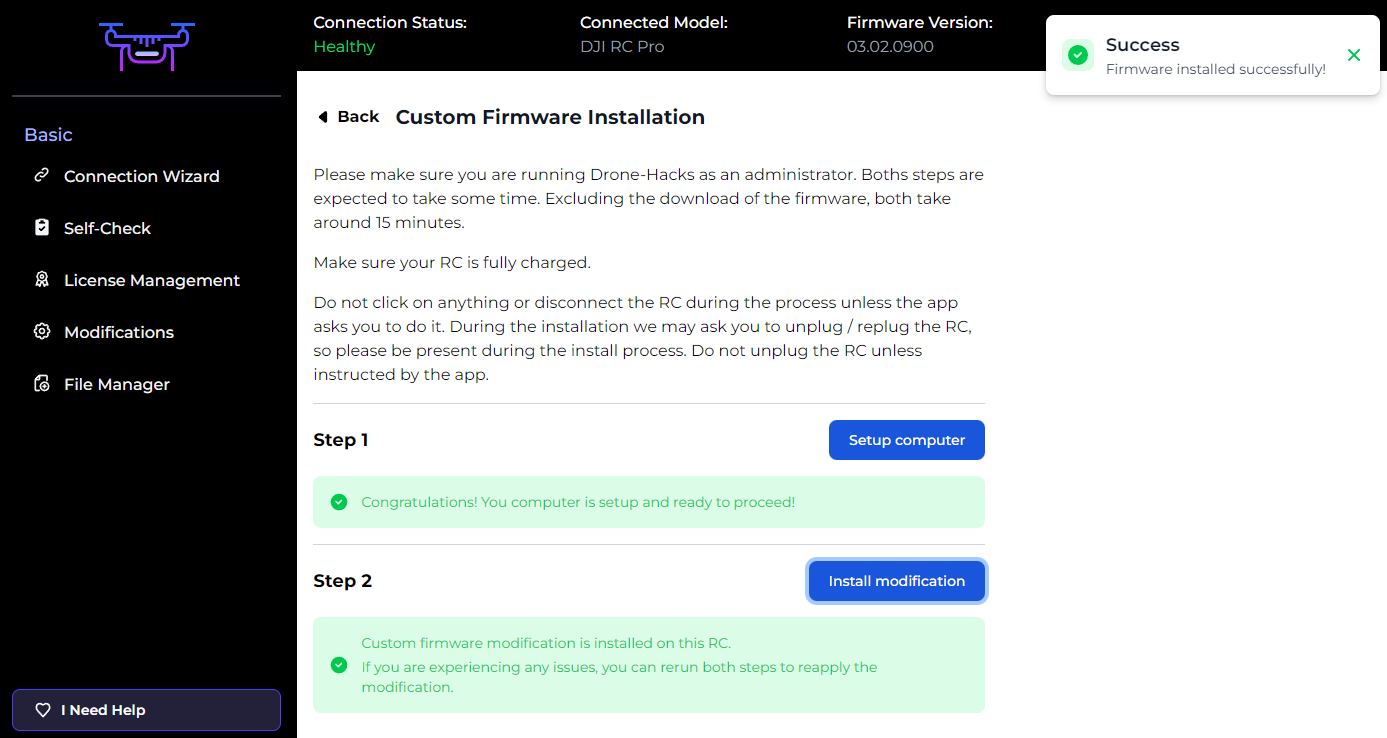
Finally, our last step in the Drone-Hacks app, you should see a confirmation message the the modifications have been installed.
¶ 6. Switching between DJI Pilot 2 and DJI FLY on your RC
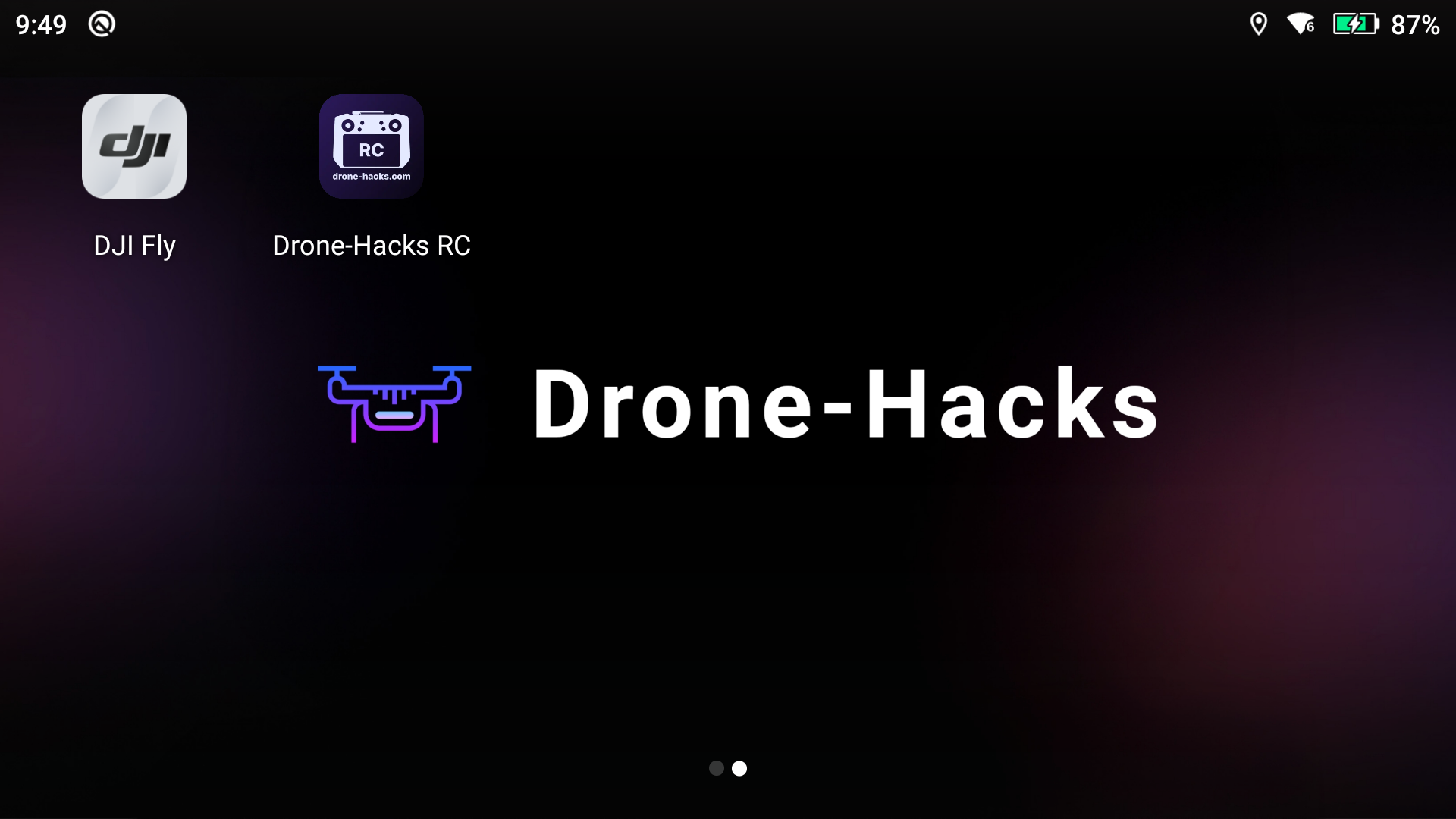
To switch between those two applications, drop back to the home screen on your RC by exiting the DJI Fly app if it has opened and tap on the “Drone-Hacks RC” app.
The purple highlighted section at the bottom shows this RC is operating in ‘RC Pro’ mode. Switching is as simple as tapping on RC Enterprise
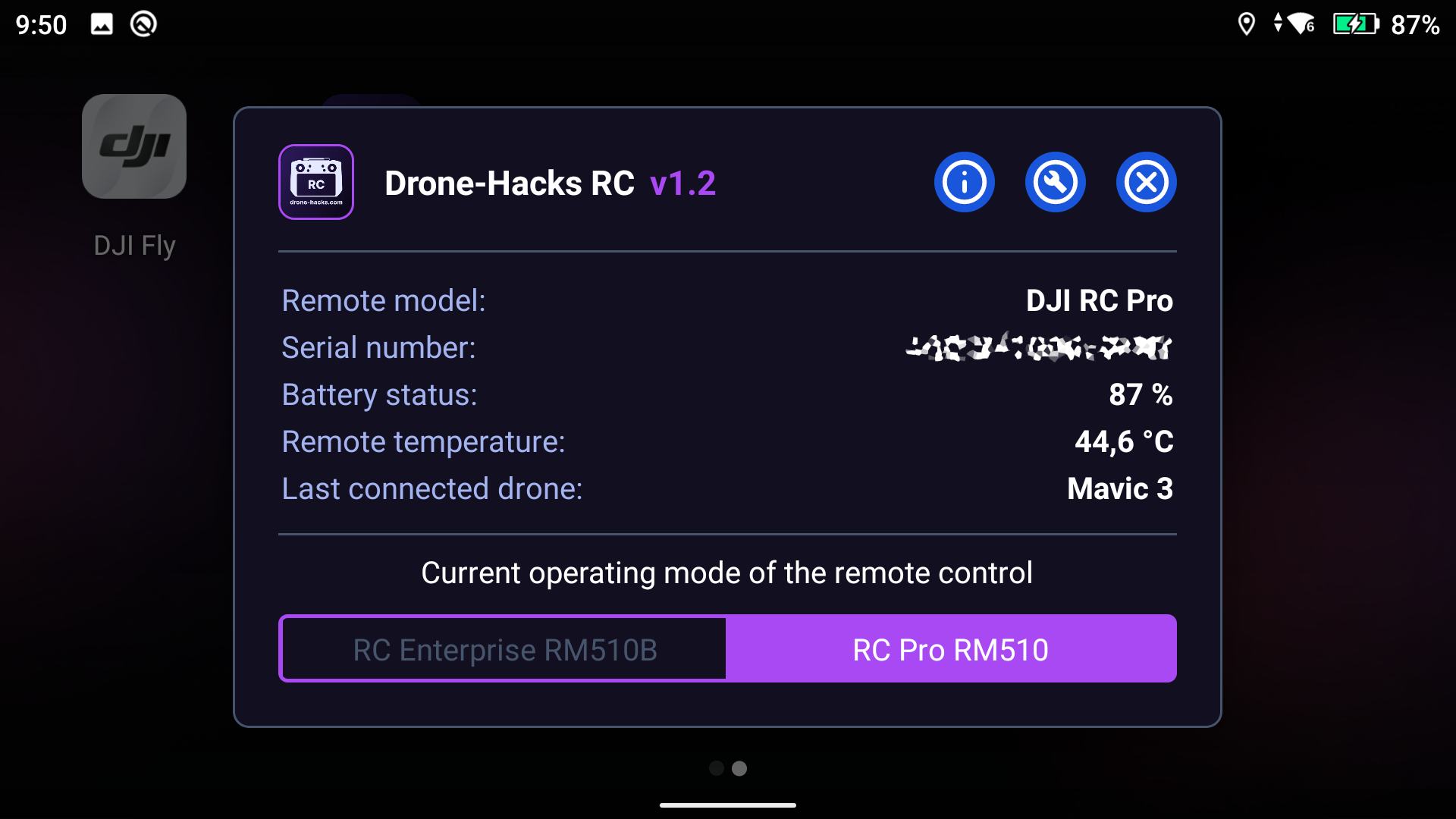
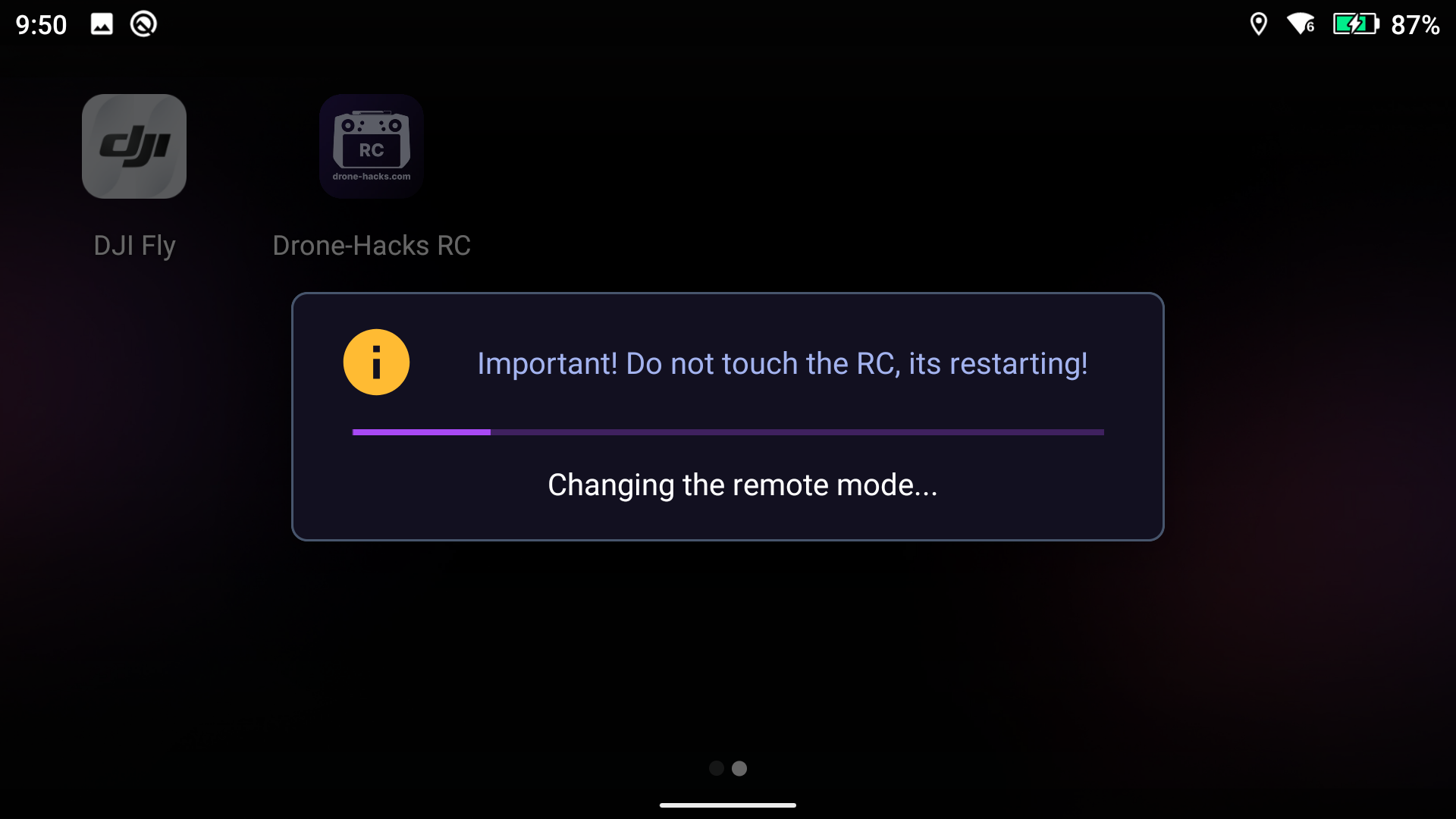
The remote will then restart into the new mode.
¶ Additional Options
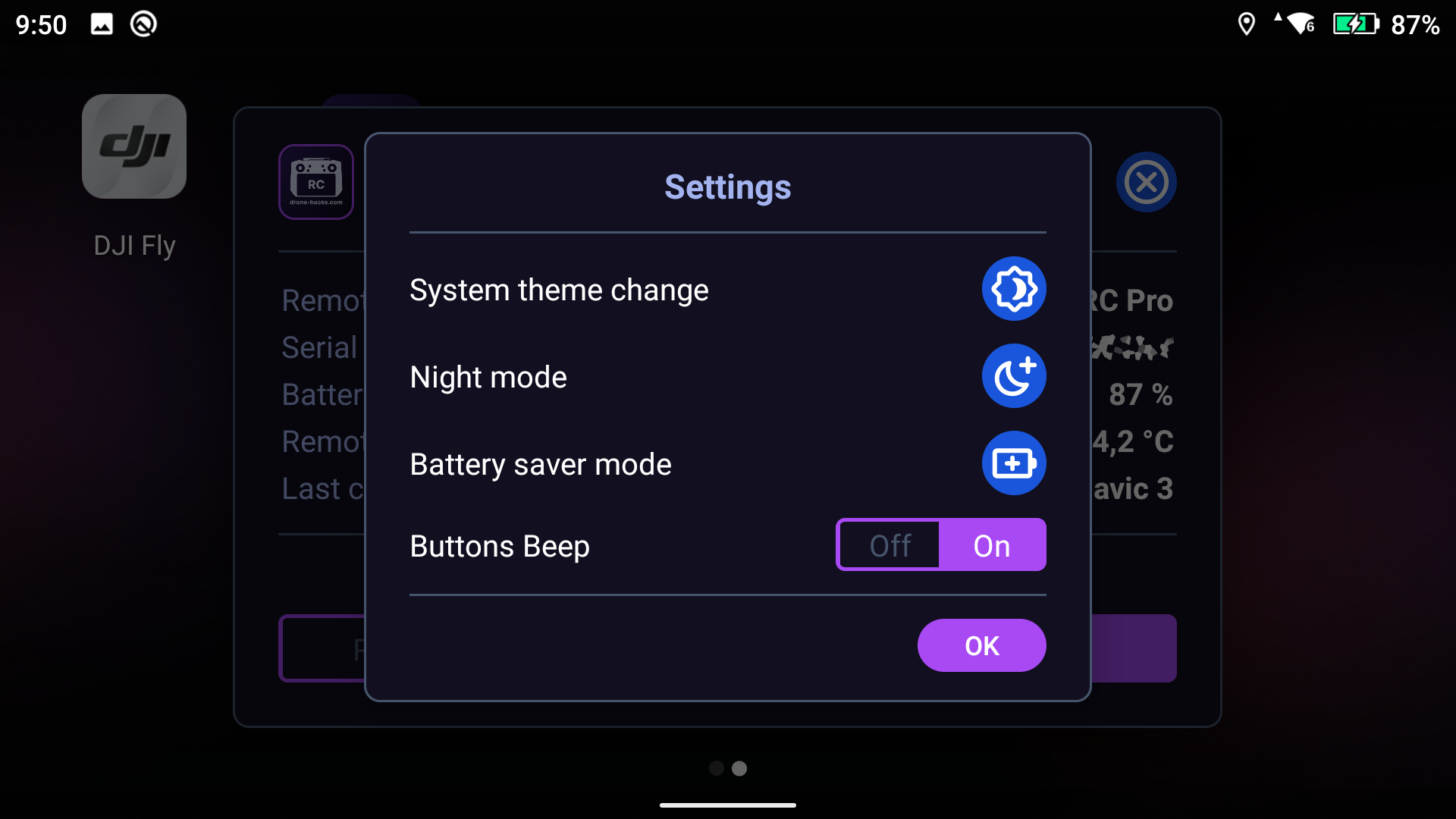
When inside the "Drone-Hacks RC" app, if you tap the wrench/spanner icon, you will have a few different options you can configure. Feel free to experiment with these, but you can finally turn off the extremely loud ‘beep’ when the RC buttons are pressed!
¶ Troubleshooting: Failed to install modification
If you encountered this error, replace your USB-A to USB-C cable with a different one. Some USB cables are known to cause issues such as “Broken Pipe” while installing.
If above does not work and your RC is stuck in “FastBoot mode”:
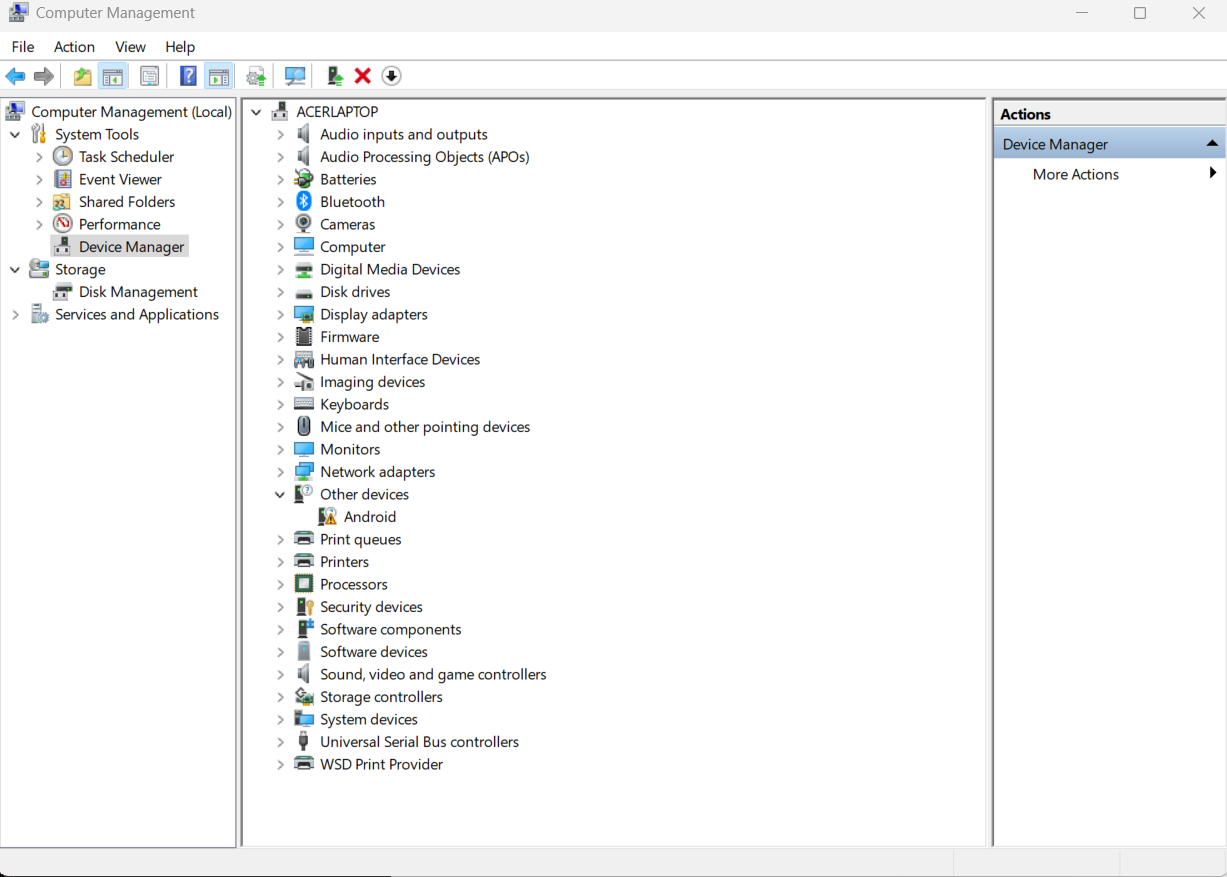
- Open Device Manager, expand “Other Devices” and locate “Android”
- Right click on “Android” and select “Update Driver”
- Download the driver from https://cloud.drone-hacks.com/drone-hacks/drivers/android_fastboot_drivers_for_rm510.zip and install it.
- Press power button on your RC so it restarts and re-try the process.
¶ Uninstall the modification
Unfortunately, Drone-Hacks v2 for the moment does not provide the ability to uninstall the modifications. However, should you want to remove the modifications, here are the steps:
- Set your RC to it's original mode (DJI FLY for RC PRO, DJI PILOT 2 for RC PRO Enterprise). Reboot.
- Flash the same firmware version from DJI Assistant 2 by pressing the Refresh button.
- Uninstall Drone-Hacks RC app from your device
¶ I cannot see the “Refresh” button in DJI Assistant 2
That means you're in wrong mode, open Drone-Hacks app and press “Yes, Change Mode” button. After that, repeat the steps.