Drone-Hacks V2 now supports the Mavic Air 2, this page will show you the exact steps you need to perform to apply the license and hacks to your drone.
Firstly, ensure you have downloaded and installed the app (we have a guide for this HERE) & that you are logged in (using this helpful guide HERE). When you're at the main Drone-Hacks page you can continue!
Next, if this is a new drone, ensure it is already activated and registered with your DJI Account.
¶ IMPORTANT FOR USERS COMING FROM DRONE-HACKS v1 HACKED DRONES
If your drone was previously modified by Drone-Hacks v1, you need to follow those steps:
- Remove the hacks via Drone-Hacks v1. DO NOT SKIP THIS STEP as irreprable damage to your drone could occur
- Open DJI Assistant 2 and flash latest firmware. Wait for it to finish.
- After successful flash, disconnect the drone's battery for 5 minutes.
- After 5 minutes, connect drone to DJI Assistant 2 and flash latest firmware again!
- Wait for a successful flash, reboot drone and attempt to start the motors. If it does not work, start again from step 1.
It's important you do these steps if your drone was previously modified otherwise your drone will refuse to take off and you will have to do everything from start!
¶ Verify Compatibility
This drone model requires a special driver to be installed before it can be modified and without this driver, your PC will not be able to communicate with the drone for hacking purposes. We have now added a self-check feature into Drone-Hacks v2 which can fully verify if we can communicate with the drone. Please follow the guide to this self-check linked HERE before purchasing or assigning a license.
To ensure we can communicate with the drone, we need to install our Recovery Driver. We have a full guide on this linked HERE, so please follow this first.
¶ DJI Assistant 2
Please ensure you download DJI Assistant 2 for Consumer Drones from DJI. You don't need this app installed, but it contains USB drivers that Drone-Hacks uses to connect to your drone. Please install this app but then close it.
¶ Connect Your Drone
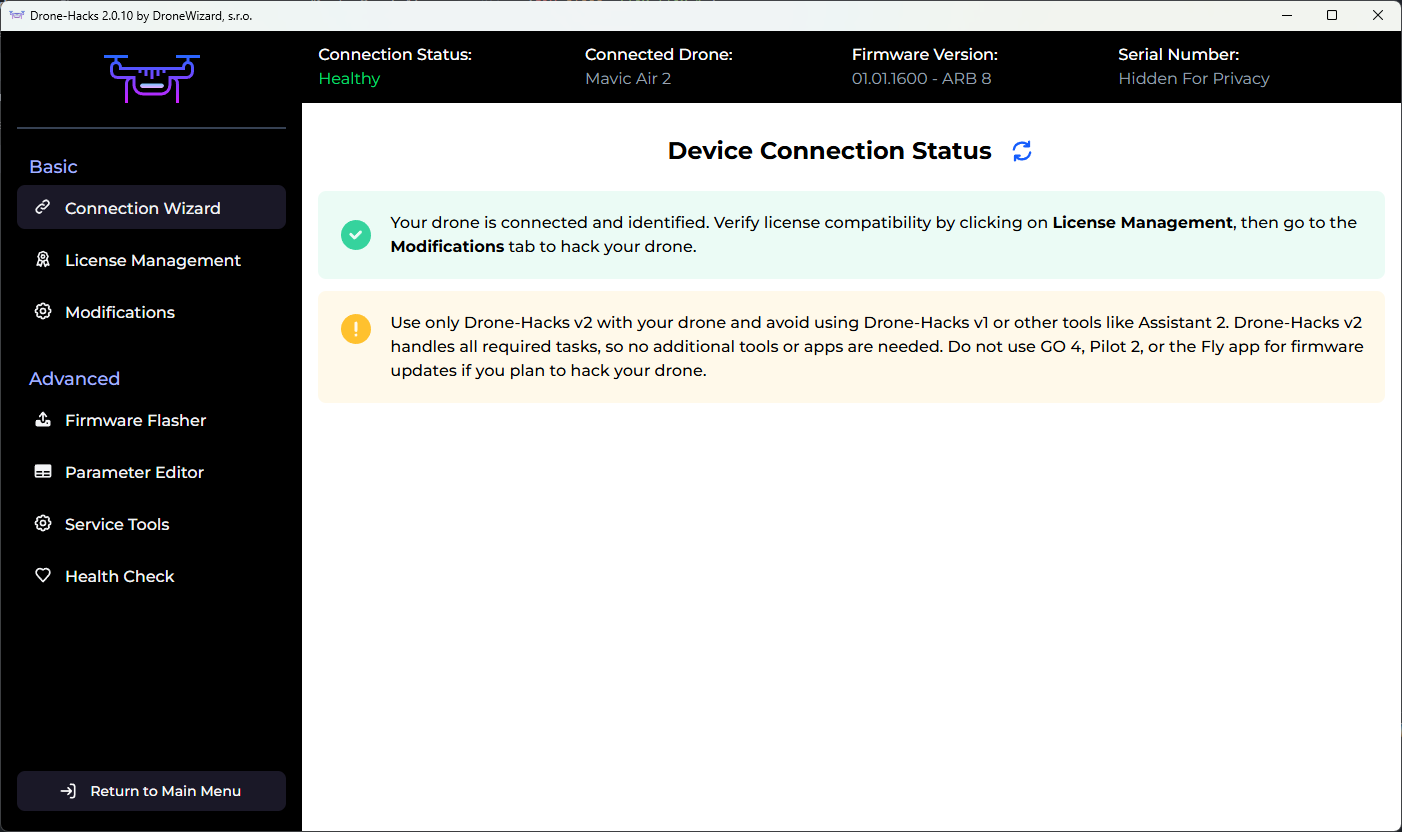
Connect your drone to your PC using the included USB cable. After a few moments the drone should be detected and you will see this screen
¶ Apply a License
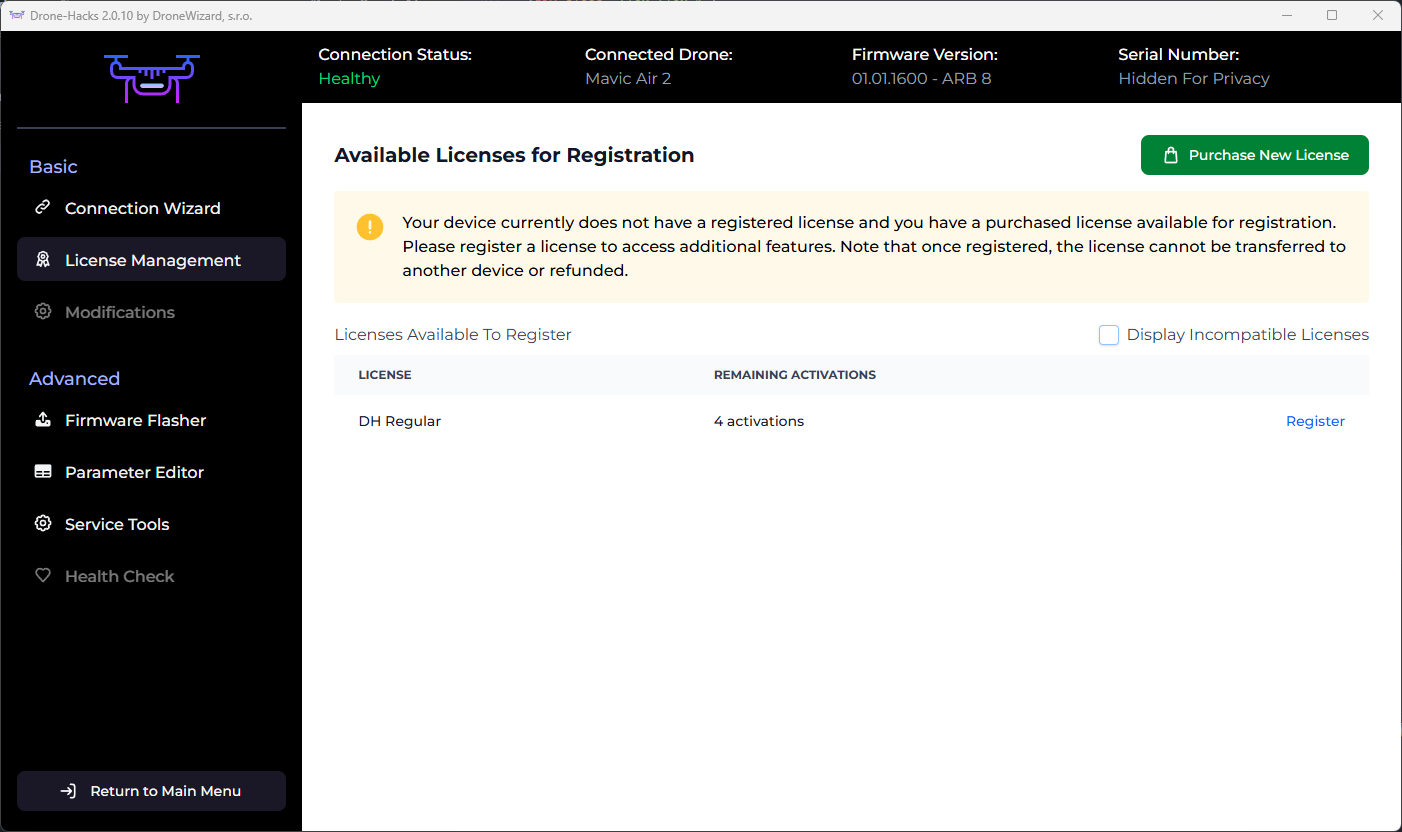
Each drone to be hacked needs its own license. Licenses are described in more detail on THIS page, we will assume you have read this and understood the type of license you need.
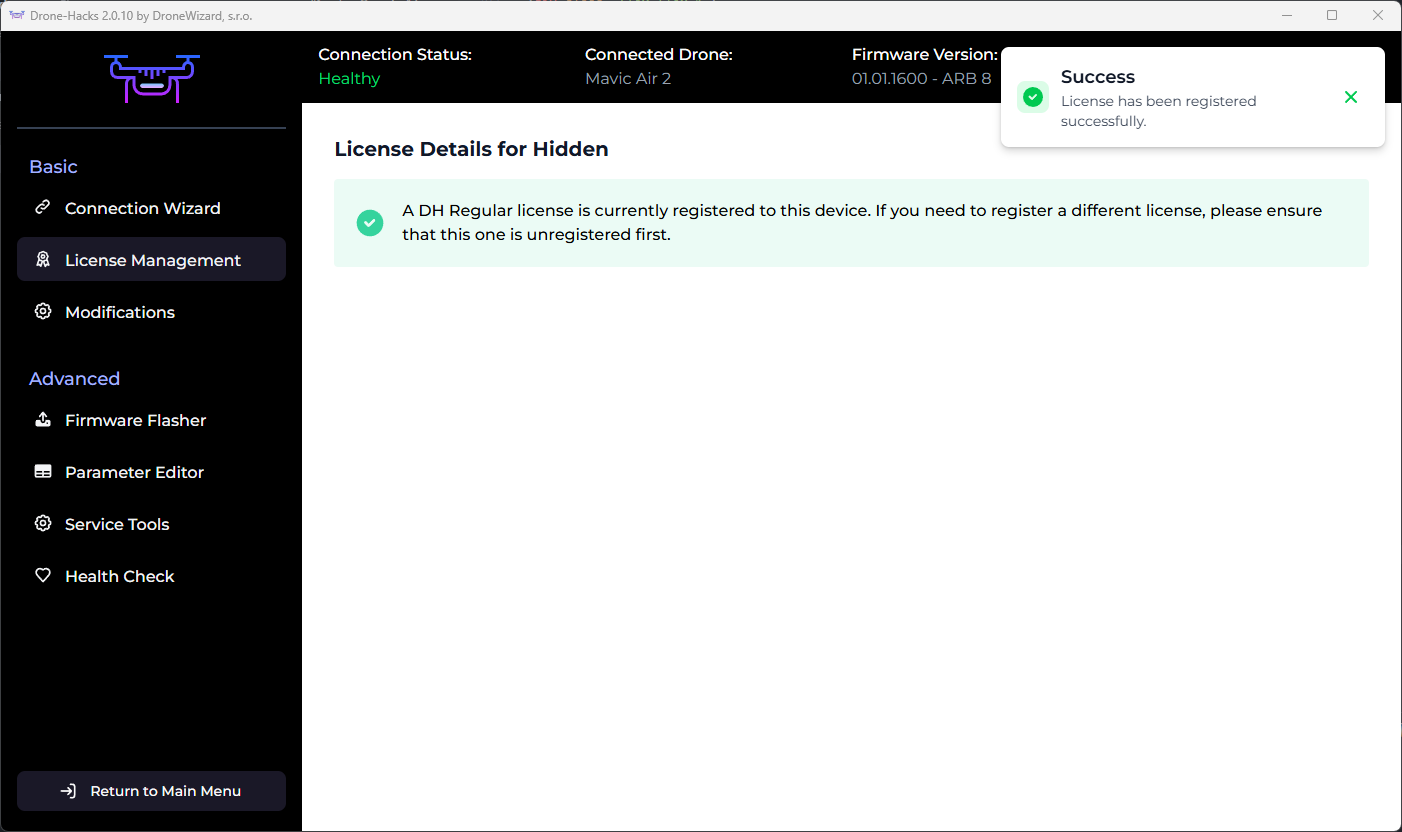
Simply select “License Management” and you should see the “DH Regular” license you purchased. Click the “Register” button to bind this license to your drone.
¶ Apply Your Hacks
With the drone now licensed, you can apply any available hacks to your drone. To do this, select the Modifications button and then click “Apply Modification”
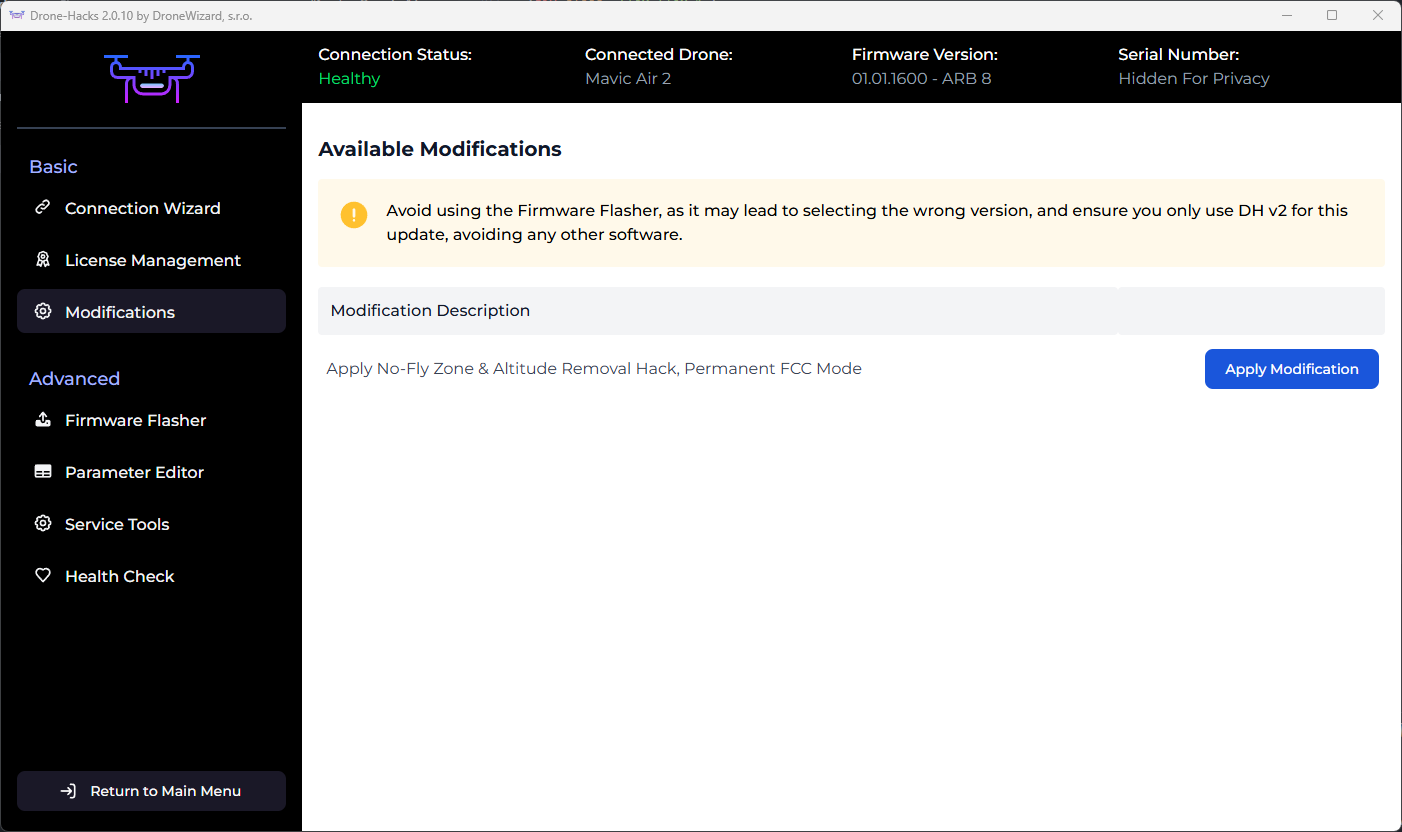
The hacks will then start to apply, please wait for them to complete

After a few moments, you will see the message below. As stated, please allow the drone to reboot automatically. You will hear the USB disconnect and reconnect sound and you will be sent back to the main Drone-Hacks screen. At this point your drone is rebooting. Please leave it connected to the USB cable until it is detected once more by the software
Once this is done you can disconnect the USB cable and go and enjoy your new hacks!
¶ Enable FCC Power
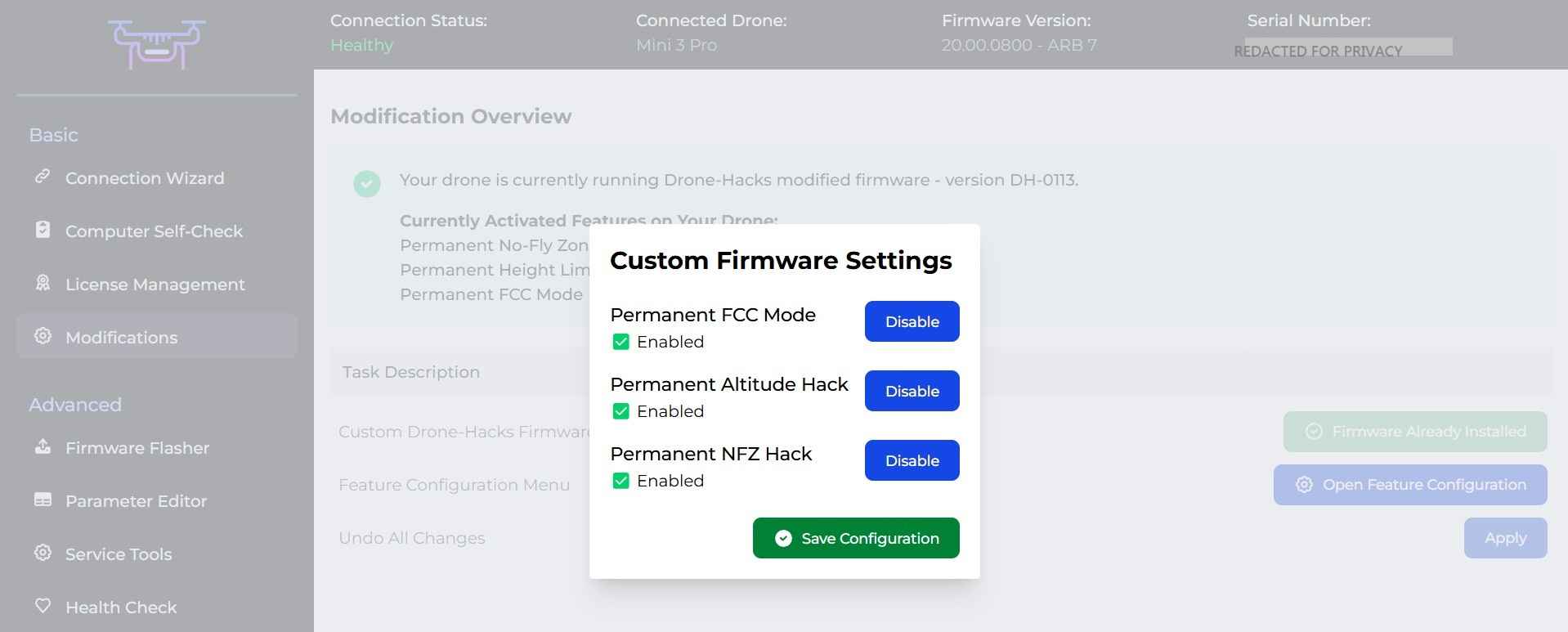
For legal reasons, customers outside of regions where FCC is the standard (US, Canada and a few other places) the FCC hack will be enabled automatically as these regions are already using FCC power levels. For customers in CE regions of the world (Europe and most other places) you must now manually enable the FCC hack.
To do this, please select the ‘Modifications’ tab and then click on “OPEN FEATURE CONFIGURATION”
¶ Hacks Completed But Didnt Apply?
We have identified a bug in the firmware of this drone, occasionally the drone does not load custom firmnware despire our software reporting the hack completed. TO resolve this, the steps are simple!
- Wait for the hacks to say theyre completed
- Shut down drone after hacking
- Remove the battery from the drone
- Count for 30 seconds
- Start hacks again
This second time around the hacks should apply correctly!
¶ Not Already on the Recommended Firmware?
If your drone is not on the recommended firmware, a message will be displayed telling you what the recommended firmware is. This can be flashed using the inbuilt Firmware Flasher as shown here. For this drone, the recommended firmware is 01.00.0900, rather than leave you to flash this yourself, DH can automate this.
The screenshots below are for a Mini 3 Pro, but the process is the same for any model.
If this is the case, you will see this message in the Modifications tab
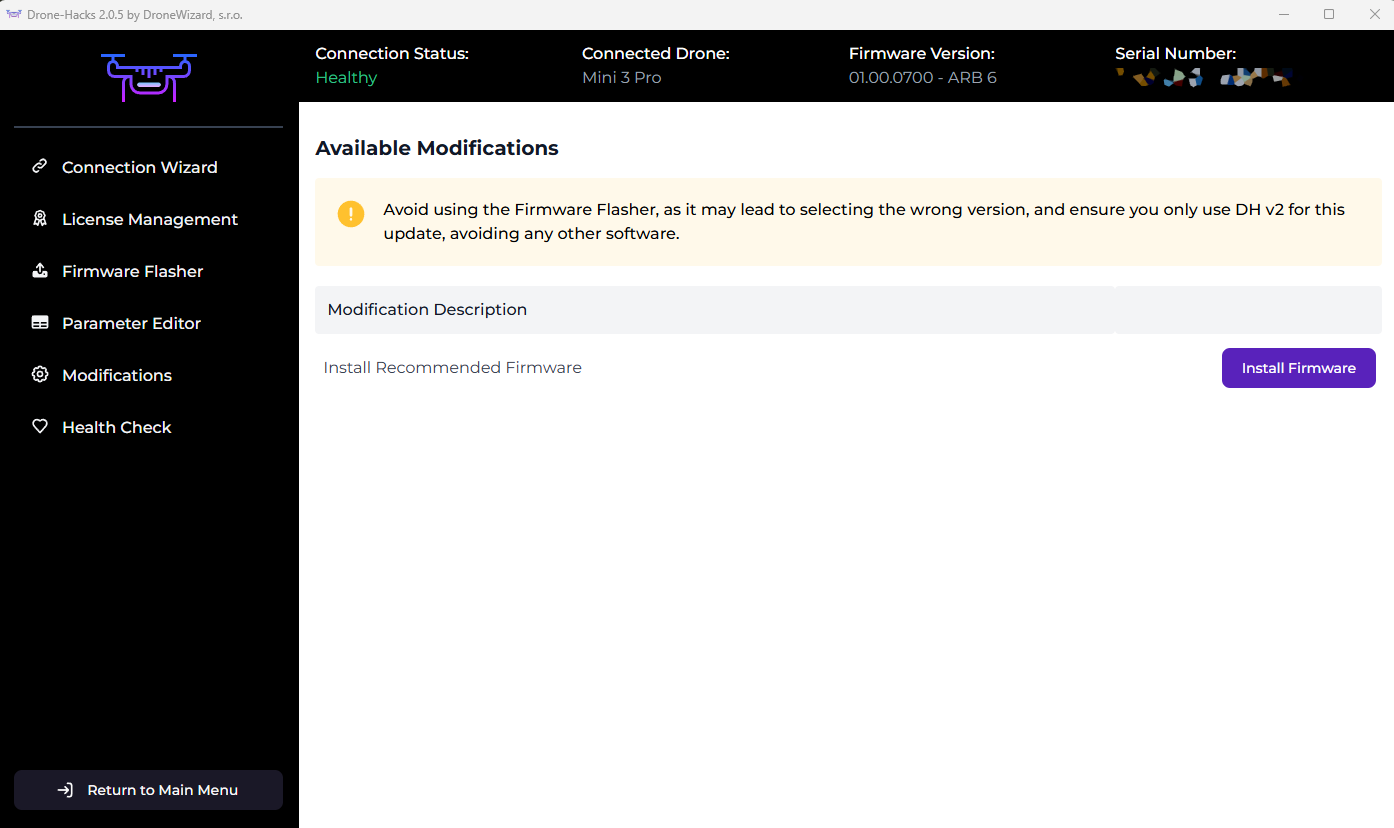
Flashing to the recommended firmware is as simple as pressing “Install Firmware”, you will be shown this message once you click it.
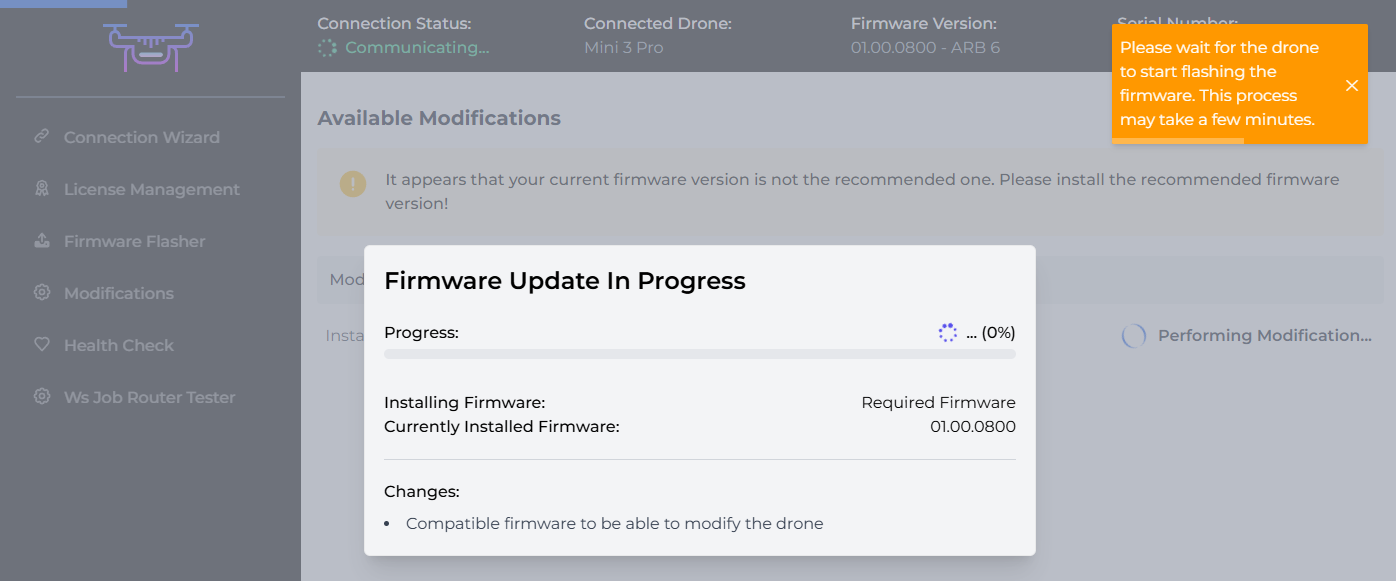
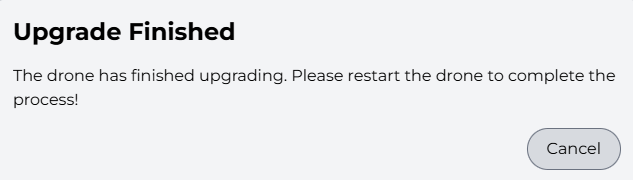
The firmware will immediately begin to install. Leave the drone powered on and connected to your PC until you receive the completion message. Once you see the message below, manually power off and then back on the drone, then click "Cancel", your new firmware is now fully flashed & you can move on to applying hacks!
¶ Uninstall Hacks/Returning to Stock
If for whatever reason you wish to remove all Drone-Hacks hacks and return your drone to stock configuration, this is also now super easy to do. Simply click the Modifications button and select “Apply” next to the ‘Undo All Changes’ option.
¶ Are My Hacks Installed?
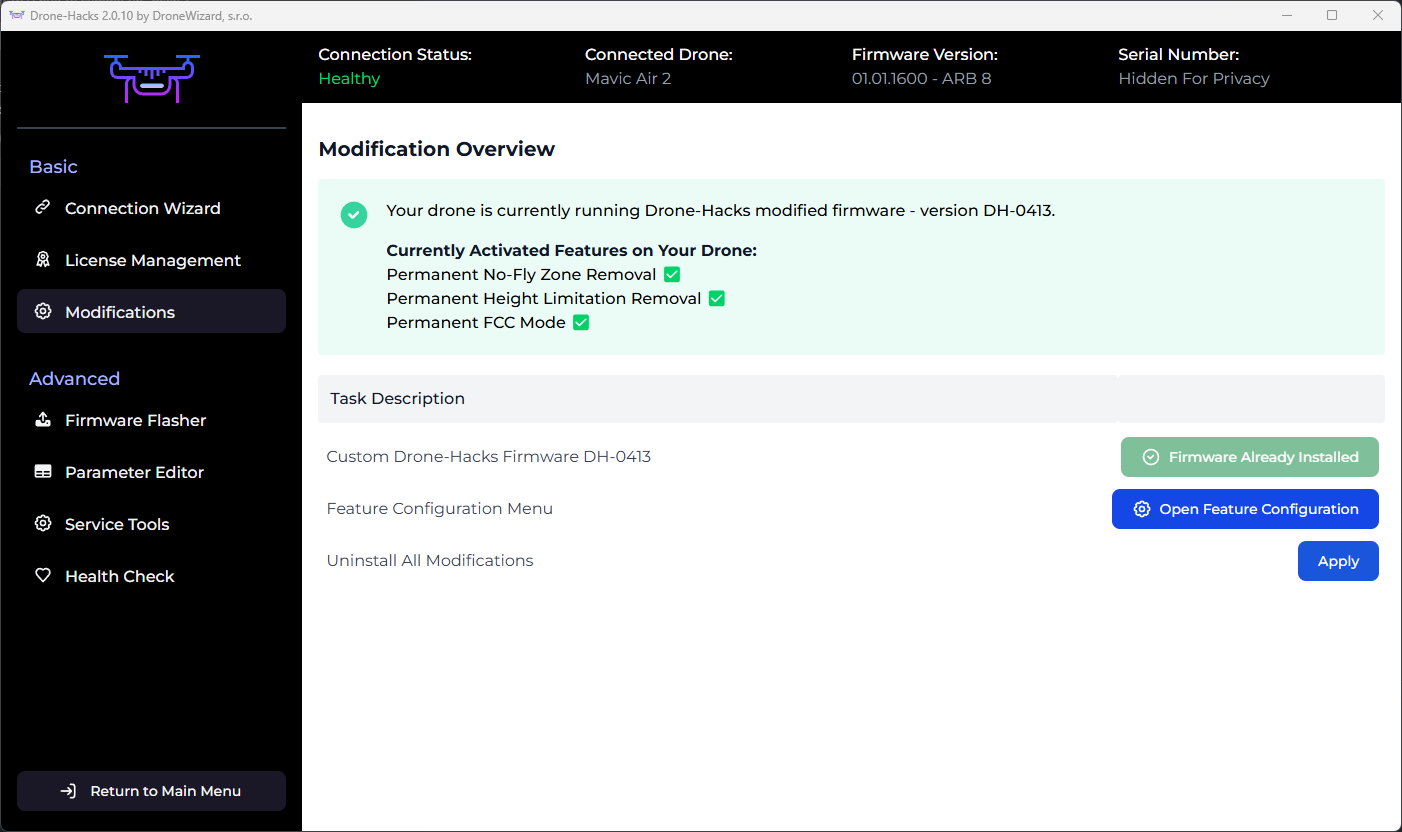
To verify if the hacks are installed you can simply check the Modifications tab. If you see this green banner, you're good to go:
However, if you wanted to check in the real world, the easiest way is to do one of the following things
- Check for FCC mode (if applied) by using this guide. This will show you if the FCC mode is active. If it is, the hacks are applied.
- In DJI Fly, set the maximum height limit of the drone to a very low value such as 20 metres. If you drone fly's higher than this, then the hacks are applied.
PLEASE NOTE: We do not modify the DJI GO/Fly app in any way, so you will still see a maximum limit for height within the app, NFZ areas and receive warnings on screen, but the modification will ignor them.
¶ Still Having Issues?
Having issues with DH v2 or interested in flying a downgraded drone? Take a look at THIS tutorial.